 WidgetCraftGet the app
Japandi · Date · 2 × 2 widget
Japandi date widget
A Japandi date widget shows the weekday, a large day number and the month. Japanese calm meets Nordic simplicity: stone, ink and empty space. This page gives the exact colors, type settings and layers, with a preview drawn from the same values.
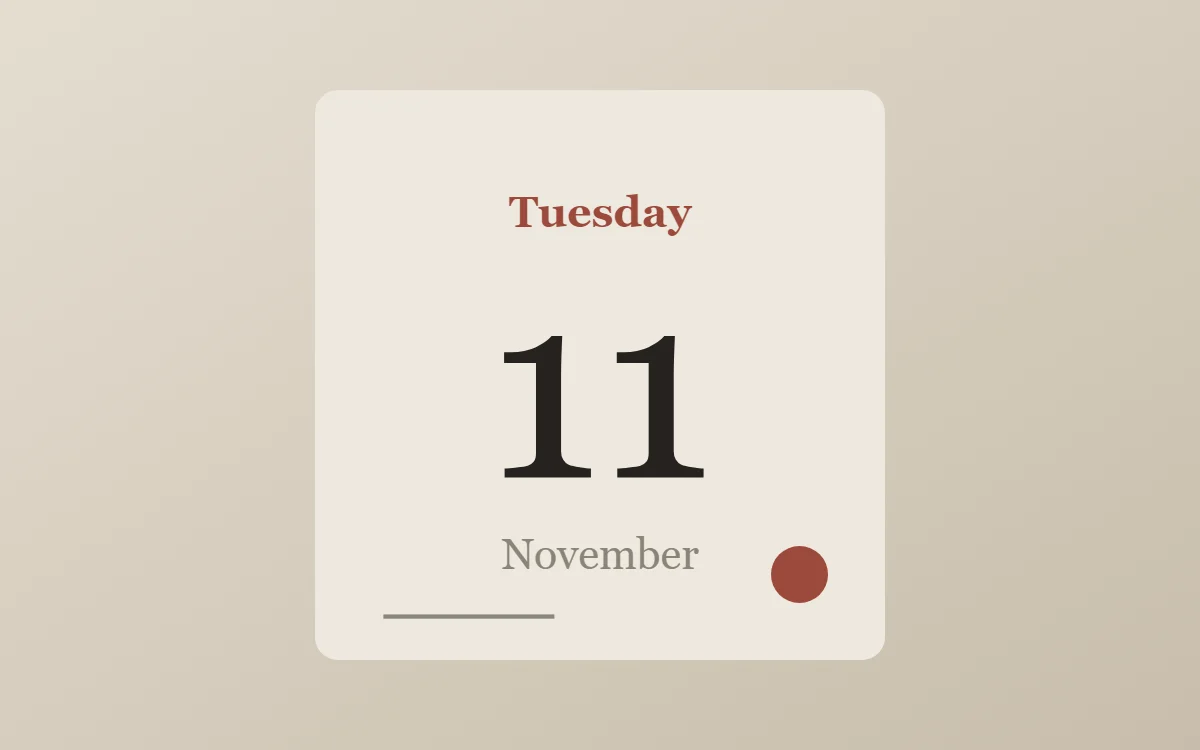
What a Japandi date widget shows
A date widget is the calm alternative to a clock: one large number for the day, with the weekday above and the month below. It suits small 2 × 2 spaces and pairs well with a clock elsewhere on the screen.
It uses the phone's date, so it is free, works offline and needs no permission. WidgetCraft's Date layer takes a pattern, so each line can show a different part of the date.
How the Japandi style shapes it
Japandi widgets mix Japanese and Scandinavian ideas: stone and clay colors, ink-black accents, off-center layouts and a lot of deliberate empty space.
- Numbers: Keep the number moderate in size and anchor it to one corner.
- Text: Use a quiet serif and place text off-center with space around it.
Japandi date widget recipe
| Layer | Settings |
|---|---|
| Canvas | 200 × 200, background #EDE8DF, corner radius 8 |
| Date | weekday (pattern EEEE), size 15, color #9C4A3C, centered |
| Date | day number (pattern d), Noto Serif JP, weight 400, size 92, color #26231F |
| Date | month (pattern MMMM), size 15, color #8C8478 |
| Ornament | one vermilion dot in the bottom right, like a seal, and a single short ink line at the bottom left |
| Font | Noto Serif JP (import the font file), or the built-in Serif |
| Home screen size | 2 × 2 cells |
Japandi color palette
- Rice paper
#EDE8DFBackground - Clay
#DDD5C7Surface and tracks - Sumi ink
#26231FText - Stone
#8C8478Labels - Vermilion
#9C4A3CAccent
How to make a Japandi date widget in WidgetCraft
- Create a widget and open Canvas. Set the size to 200 × 200, the background to #EDE8DF and the corner radius to 8.
- Tap Add and choose Date. Set the pattern to the full weekday (EEEE), the size to 15 and the color to #9C4A3C.
- Add a second Date layer with the day number (pattern d) at size 92 in #26231F, using Noto Serif JP.
- Add a third Date layer with the full month (MMMM) at size 15 in #8C8478.
- Center all three layers on the canvas.
- Add the Japandi ornament with Shape layers and move them below the other layers in Layers: one vermilion dot in the bottom right, like a seal, and a single short ink line at the bottom left.
- Tap Save, then Add to home screen and resize the widget on your launcher if needed.
Everything in this recipe works in the free version.
Tips for Japandi date widgets
- Leave at least a third of the widget empty.
- Use vermilion once, as a small dot.
- Make the day number at least twice the size of the other lines.
- Write the month in full if there is room; short forms such as "Nov" look cramped in serif fonts.
- Pair it with a clock widget in the same font rather than squeezing the time into the same 2 × 2 space.
- Do not center and fill the layout.
- Do not use glossy or bright colors.
Questions about the Japandi date widget
What size is a Japandi date widget?
It is designed for 2 × 2 home screen cells on a 200 × 200 canvas. You can resize it on the launcher and the design scales in proportion.
Which colors does it use?
Rice paper (#EDE8DF) for the background, Sumi ink (#26231F) for the main text, Stone (#8C8478) for labels and Vermilion (#9C4A3C) as the accent.
Is it free to make?
Yes. Date widgets use free features in WidgetCraft, and the Japandi styling is free too.
What else is this style called?
People also search for zen date widget, japanese style date widget, wabi sabi date widget. They describe the same look as this Japandi date widget.
More Japandi widgets
- Japandi clock widget
- Japandi analog clock widget
- Japandi calendar widget
- Japandi battery widget
- Japandi countdown widget
- Japandi to-do list widget
- Japandi photo widget
- Japandi quote widget
- Japandi music widget
- Japandi year progress widget
- Japandi step counter widget
- Japandi habit tracker widget
- Japandi sticky note widget
- Japandi world clock widget
- Japandi home screen setup
- All Japandi widgets