 WidgetCraftGet the app
Red · Habit tracker · 4 × 2 widget
Red habit tracker widget
A red habit tracker widget shows today's habits with a ring that fills as you complete them. Bold red with black or white for strong contrast. This page gives the exact colors, type settings and layers, with a preview drawn from the same values.
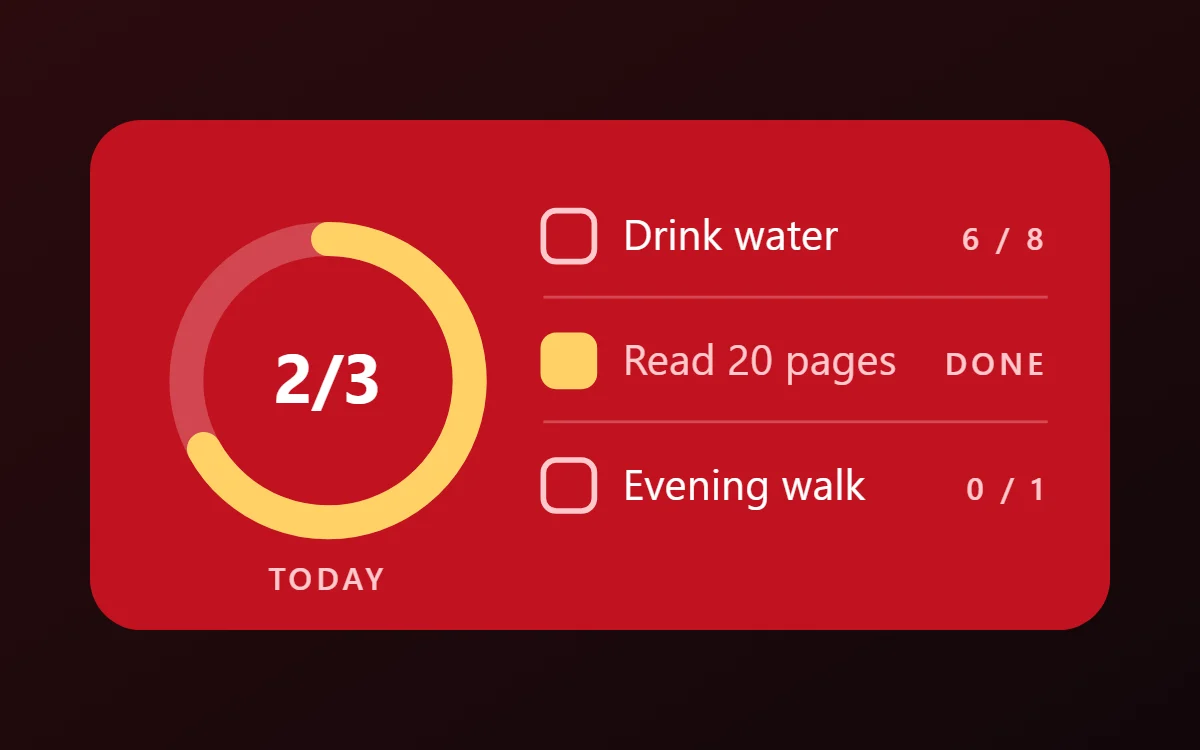
What a red habit tracker widget shows
A habit tracker widget keeps a daily routine in view: water, reading, a walk. A ring shows how much of today is done and a short list lets you tick each habit from the home screen.
Habits are stored on the phone in WidgetCraft's Tasks, notes & habits section, a free source with no account or permission. Each habit can have a daily goal, such as 8 glasses, and the days it repeats; the app keeps the streak for you.
How the red style shapes it
Red widgets are bold and energetic. This recipe sets white text on a deep red with a darker red for tracks; red and black is the classic alternative.
- Lists: White text with square white checkboxes.
- Bars and rings: Use a white or amber bar on an oxblood track.
Red habit tracker widget recipe
| Layer | Settings |
|---|---|
| Canvas | 360 × 180, background #C1121F, corner radius 18 |
| Ring (habit progress) | diameter 100, stroke 12, progress #FFD166, connected to today's habit progress |
| Text | "2/3" completed habits, built-in Sans, size 24, color #FFFFFF |
| List | today's habits, 3 rows, text size 15 in #FFFFFF, count on the right in #FFC9CD |
| Checkbox | 18 × 18, outline #FFC9CD; done state filled #FFD166 |
| Font | built-in Sans |
| Home screen size | 4 × 2 cells |
Red color palette
- Crimson
#C1121FBackground - Oxblood
#9A0E18Surface and tracks - White
#FFFFFFText - Pale rose
#FFC9CDLabels - Amber
#FFD166Accent
How to make a red habit tracker widget in WidgetCraft
- Open Tasks, notes & habits and add your habits. Give each a daily goal (for example 8 glasses) and the days it repeats.
- Create a widget and open Canvas. Set the size to 360 × 180, the background to #C1121F and the corner radius to 18.
- Tap Add and choose Habit progress ring. Set the diameter to 100, the stroke to 12 and the progress color to #FFD166.
- Add a Text layer inside the ring for the count of completed habits at size 24 in #FFFFFF.
- Add Today's habits as a list on the right, limited to three rows, with text at size 15 in #FFFFFF. A tap on a row marks progress.
- Tap Save, then Add to home screen and resize the widget on your launcher if needed.
Everything in this recipe works in the free version.
Tips for red habit tracker widgets
- Use red as the background and white as text.
- Add black as a third color if needed.
- Track three habits or fewer on one widget; more rows get too small to tap.
- Give counted habits a unit, such as glasses or pages, so the numbers make sense.
- A habit only counts on the days it is scheduled, so check the days if one never appears.
- Do not use red text on black for small sizes; it is hard to read.
- Do not mix with pink.
Questions about the red habit tracker widget
What size is a red habit tracker widget?
It is designed for 4 × 2 home screen cells on a 360 × 180 canvas. You can resize it on the launcher and the design scales in proportion.
Which colors does it use?
Crimson (#C1121F) for the background, White (#FFFFFF) for the main text, Pale rose (#FFC9CD) for labels and Amber (#FFD166) as the accent.
Is it free to make?
Yes. Habit tracker widgets use free features in WidgetCraft, and the red styling is free too.
What else is this style called?
People also search for red aesthetic habit tracker widget, red and black habit tracker widget, crimson habit tracker widget. They describe the same look as this red habit tracker widget.
More red widgets
- Red clock widget
- Red analog clock widget
- Red calendar widget
- Red battery widget
- Red countdown widget
- Red to-do list widget
- Red photo widget
- Red quote widget
- Red music widget
- Red year progress widget
- Red step counter widget
- Red sticky note widget
- Red world clock widget
- Red date widget
- Red home screen setup
- All red widgets