 WidgetCraftGet the app
Spring · Year progress · 4 × 2 widget
Spring year progress widget
A spring year progress widget shows how much of the year has passed as a percentage and a bar. Fresh greens, blossom pink and soft yellow. This page gives the exact colors, type settings and layers, with a preview drawn from the same values.
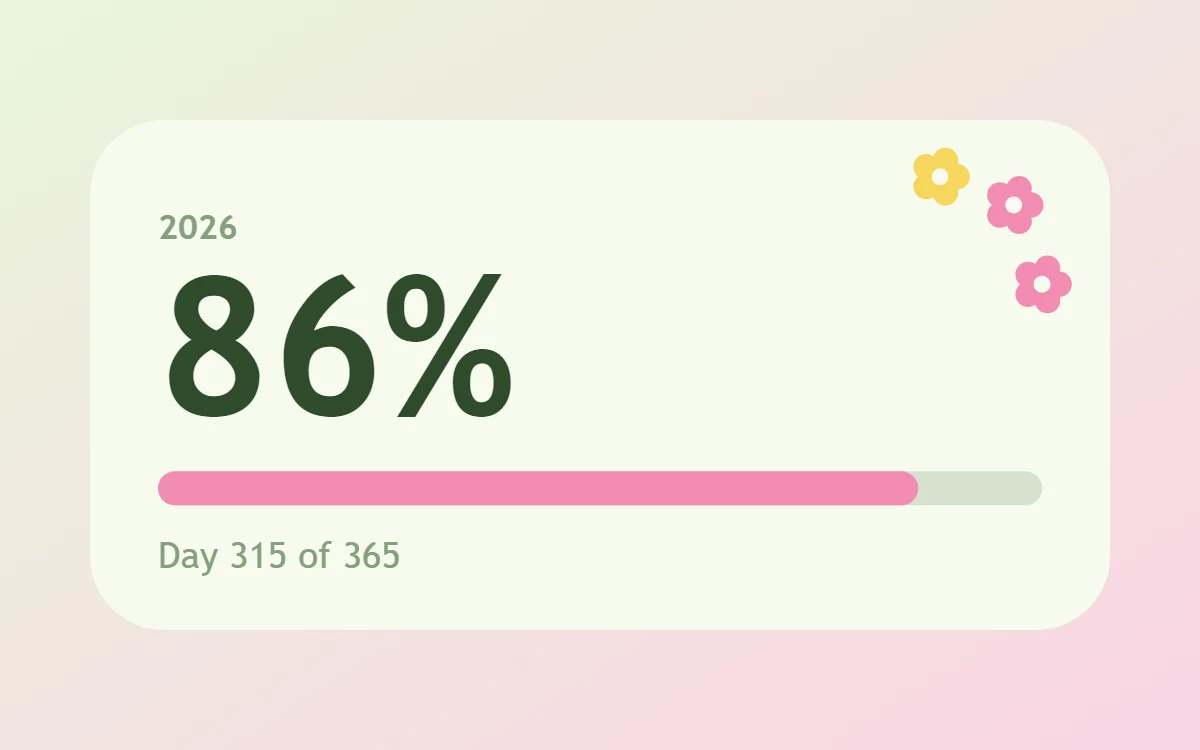
What a spring year progress widget shows
A year-progress widget is a gentle nudge: one bar that fills from 1 January to 31 December. The same layout works for the day, the week or a personal goal.
It is calculated from the date, so it is free, offline and needs no permission. WidgetCraft includes a free Day progress component, and a formula can stretch it to the year.
How the spring style shapes it
Spring widgets feel fresh: new-leaf green, blossom pink and pale yellow on a soft white ground, with rounded friendly type.
- Bars and rings: Use pink bars on a new-leaf track.
- Numbers: Keep numbers green with a blossom-pink label.
Spring year progress widget recipe
| Layer | Settings |
|---|---|
| Canvas | 360 × 180, background #F6FBEF, corner radius 26 |
| Text | year label, size 12, color #86A07C |
| Text (formula) | percentage of the year, Quicksand, size 68, color #2F4A2A |
| Progress | a thick 12-point bar with rounded ends, 312 wide, progress #F28BB3, range 0 to 365 |
| Text | "Day 315 of 365", size 13, color #86A07C |
| Ornament | three small five-petal flowers in the top right, each built from five circles around a center dot |
| Font | Quicksand (import the font file), or the built-in Sans |
| Home screen size | 4 × 2 cells |
Spring color palette
- Petal white
#F6FBEFBackground - New leaf
#E3F2D3Surface and tracks - Stem green
#2F4A2AText - Sage
#86A07CLabels - Blossom
#F28BB3Accent
How to make a spring year progress widget in WidgetCraft
- Create a widget and open Canvas. Set the size to 360 × 180, the background to #F6FBEF and the corner radius to 26.
- Tap Add and choose Progress. Make it 312 wide, styled as a thick 12-point bar with rounded ends.
- Open Data and connect it to the day of the year with a range of 0 to 365.
- Color the progress #F28BB3 and keep the track faint.
- Add a Text layer for the percentage at size 68 in #2F4A2A, and a smaller one for the day count at size 13 in #86A07C.
- Add the spring ornament with Shape layers and move them below the other layers in Layers: three small five-petal flowers in the top right, each built from five circles around a center dot.
- Tap Save, then Add to home screen and resize the widget on your launcher if needed.
Everything in this recipe works in the free version.
Tips for spring year progress widgets
- Pair green with one flower color.
- Keep backgrounds almost white.
- Show both the percentage and the day count so the bar has context.
- Use a segmented bar if you want each step to feel like a milestone.
- For a goal of your own, connect the bar to a counter instead of the date.
- Do not use dark heavy colors.
- Do not use more than two accents.
Questions about the spring year progress widget
What size is a spring year progress widget?
It is designed for 4 × 2 home screen cells on a 360 × 180 canvas. You can resize it on the launcher and the design scales in proportion.
Which colors does it use?
Petal white (#F6FBEF) for the background, Stem green (#2F4A2A) for the main text, Sage (#86A07C) for labels and Blossom (#F28BB3) as the accent.
Is it free to make?
Yes. Year progress widgets use free features in WidgetCraft, and the spring styling is free too.
What else is this style called?
People also search for floral aesthetic year progress widget, easter year progress widget, blossom year progress widget. They describe the same look as this spring year progress widget.
More spring widgets
- Spring clock widget
- Spring analog clock widget
- Spring calendar widget
- Spring battery widget
- Spring countdown widget
- Spring to-do list widget
- Spring photo widget
- Spring quote widget
- Spring music widget
- Spring step counter widget
- Spring habit tracker widget
- Spring sticky note widget
- Spring world clock widget
- Spring date widget
- Spring home screen setup
- All spring widgets