 WidgetCraftGet the app
Terminal · Photo · 4 × 2 widget
Terminal photo widget
A terminal photo widget frames a favorite picture with a short caption. Green or amber monospace text on black, like a command line. This page gives the exact colors, type settings and layers, with a preview drawn from the same values.
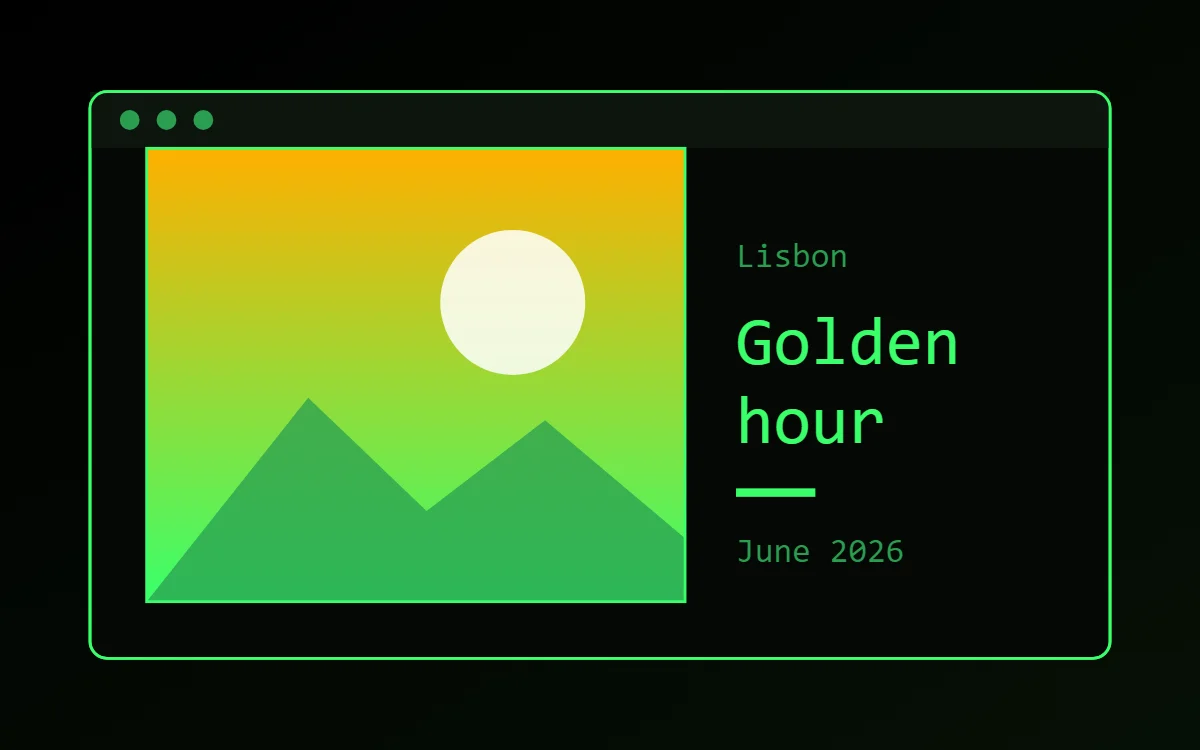
What a terminal photo widget shows
A photo widget puts a person, place or pet on the home screen without making it the wallpaper. The frame, the crop and the caption decide whether it feels designed or just pasted in.
You pick the picture with Android's photo picker, so WidgetCraft needs no storage permission, and the photo stays on your phone. It is a free element.
How the terminal style shapes it
Terminal widgets look like a command prompt: a black background, green monospace text, a prompt symbol and plain text output instead of graphics.
- Photos: Skip photos; this style is text only.
- Text: Start lines with a prompt such as > or $ and write labels in lowercase.
Terminal photo widget recipe
| Layer | Settings |
|---|---|
| Canvas | 360 × 200, background #050805, corner radius 6, outline 1 pt #39FF6A |
| Layout | photo on the left, caption on the right |
| Image | 190 × 160, corner radius 0, crop to fill, 1 pt outline |
| Text | place label, size 12, color #2A9D50 |
| Text | caption in two lines, JetBrains Mono, size 24, color #39FF6A |
| Shape | rule 28 × 3 in #39FF6A |
| Text | date, size 12, color #2A9D50 |
| Ornament | a 20-point title bar across the top in the darker green-black, with three small dots at its left like a terminal window |
| Font | JetBrains Mono (import the font file), or the built-in Mono |
| Home screen size | 4 × 2 cells |
Terminal color palette
- Black
#050805Background - Phosphor dark
#0D140DSurface and tracks - Phosphor green
#39FF6AText - Dim green
#2A9D50Labels - Green
#39FF6AAccent
How to make a terminal photo widget in WidgetCraft
- Create a widget and open Canvas. Set the size to 360 × 200, the background to #050805 and the corner radius to 6. Add a 1-point outline.
- Tap Add and choose Image. Pick your photo, size it to 190 × 160 and set crop to fill.
- Set the image corner radius to 0 and add a thin outline. Drag the crop so the subject is centered.
- Add a Text caption at size 24 in #39FF6A using JetBrains Mono.
- Add a small place label above and a date below, both at size 12 in #2A9D50, with a short rule in #39FF6A between them.
- Add the terminal ornament with Shape layers and move them below the other layers in Layers: a 20-point title bar across the top in the darker green-black, with three small dots at its left like a terminal window.
- Tap Save, then Add to home screen and resize the widget on your launcher if needed.
Everything in this recipe works in the free version.
Tips for terminal photo widgets
- Use one monospace font for everything.
- Keep text green on black with a dimmer green for labels.
- Choose a photo whose subject sits in the middle; widgets crop the edges.
- Portrait photos suit 2 × 2 or tall widgets better than wide ones.
- Very large images make widgets slow; let the app resize the photo when asked.
- Do not use rounded corners above 8.
- Do not mix in icons or images.
Questions about the terminal photo widget
What size is a terminal photo widget?
It is designed for 4 × 2 home screen cells on a 360 × 200 canvas. You can resize it on the launcher and the design scales in proportion.
Which colors does it use?
Black (#050805) for the background, Phosphor green (#39FF6A) for the main text, Dim green (#2A9D50) for labels and Green (#39FF6A) as the accent.
Is it free to make?
Yes. Photo widgets use free features in WidgetCraft, and the terminal styling is free too.
What else is this style called?
People also search for hacker photo widget, command line photo widget, code photo widget, matrix photo widget. They describe the same look as this terminal photo widget.
More terminal widgets
- Terminal clock widget
- Terminal analog clock widget
- Terminal calendar widget
- Terminal battery widget
- Terminal countdown widget
- Terminal to-do list widget
- Terminal quote widget
- Terminal music widget
- Terminal year progress widget
- Terminal step counter widget
- Terminal habit tracker widget
- Terminal sticky note widget
- Terminal world clock widget
- Terminal date widget
- Terminal home screen setup
- All terminal widgets