 WidgetCraftGet the app
Art Deco · To-do list · 4 × 2 widget
Art Deco to-do list widget
An Art Deco to-do list widget keeps today's tasks on your home screen with boxes you can tick. Ivory, black and gold with fine symmetrical line work. This page gives the exact colors, type settings and layers, with a preview drawn from the same values.
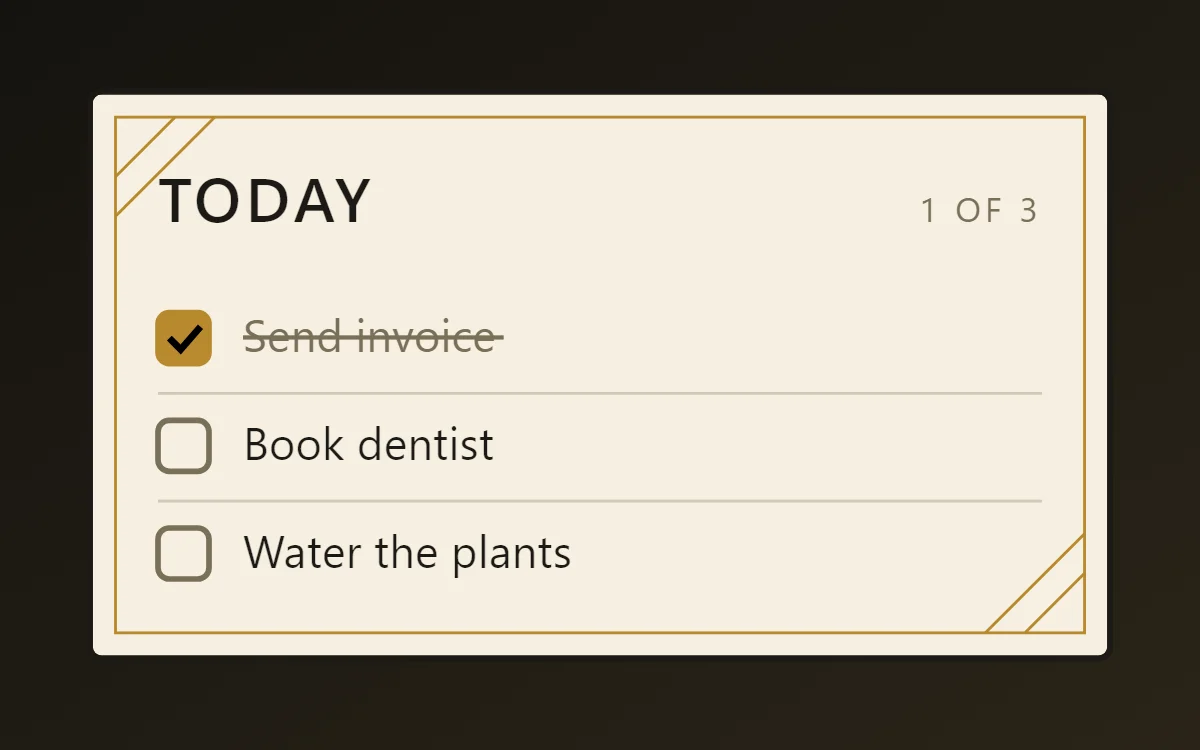
What an Art Deco to-do list widget shows
A to-do widget works when it is short. Three tasks, a clear title and a box to tap are enough; a long list belongs in an app.
WidgetCraft stores local tasks on the phone, which is a free source and needs no account or permission. Tapping a row can tick the task from the home screen.
How the Art Deco style shapes it
Art Deco widgets take the look of 1920s posters and hotel signage: thin gold lines, strict symmetry, tall elegant capitals and ivory or black grounds.
- Lists: Center each row and separate rows with a short gold rule.
- Text: Use tall thin capitals with wide letter spacing and center every line.
Art Deco to-do list widget recipe
| Layer | Settings |
|---|---|
| Canvas | 360 × 200, background #F6F0E1, corner radius 4, outline 2 pt #1C1A16 |
| Text | title "Today", Poiret One, size 22, color #1C1A16 |
| Text | count such as "1 of 3", size 12, color #7A6F58, right aligned |
| List | local tasks, 3 rows, row height 38, text size 16 in #1C1A16 |
| Checkbox | 18 × 18, radius 4, outline #7A6F58; done state filled #B8892E |
| Done rows | text #7A6F58 with strikethrough |
| Ornament | a second 1-point gold outline inset 9 points, with two short diagonal gold lines across opposite corners |
| Font | Poiret One (import the font file), or the built-in Sans |
| Home screen size | 4 × 2 cells |
Art Deco color palette
- Ivory
#F6F0E1Background - Champagne
#EADFC6Surface and tracks - Onyx
#1C1A16Text - Bronze grey
#7A6F58Labels - Gold
#B8892EAccent
How to make an Art Deco to-do list widget in WidgetCraft
- Create a widget and open Canvas. Set the size to 360 × 200, the background to #F6F0E1 and the corner radius to 4. Add a 2-point outline.
- Add a Text layer for the title "Today" at size 22 in #1C1A16.
- Tap Add and choose List. In Data, choose your local task list and limit it to three rows.
- Set the row text to size 16 in #1C1A16 and the checkbox to 18 × 18 with radius 4.
- Style finished rows in #7A6F58 and set the tick color to #B8892E. In Tap, set a row tap to tick the task.
- Add the Art Deco ornament with Shape layers and move them below the other layers in Layers: a second 1-point gold outline inset 9 points, with two short diagonal gold lines across opposite corners.
- Tap Save, then Add to home screen and resize the widget on your launcher if needed.
Everything in this recipe works in the free version.
Tips for Art Deco to-do list widgets
- Center the layout and mirror the left and right sides.
- Use gold only for lines, never for large fills.
- Limit the list to three or four rows so each stays easy to tap.
- Make finished tasks visibly different: grey text and a strikethrough.
- Tap targets on a widget should be at least 48 dp high.
- Do not left-align; Deco depends on symmetry.
- Do not use heavy bold type.
Ready-made Art Deco templates
WidgetCraft includes a Art Deco template pack you can import and edit instead of starting from a blank canvas.
Questions about the Art Deco to-do list widget
What size is an Art Deco to-do list widget?
It is designed for 4 × 2 home screen cells on a 360 × 200 canvas. You can resize it on the launcher and the design scales in proportion.
Which colors does it use?
Ivory (#F6F0E1) for the background, Onyx (#1C1A16) for the main text, Bronze grey (#7A6F58) for labels and Gold (#B8892E) as the accent.
Is it free to make?
Yes. To-do list widgets use free features in WidgetCraft, and the Art Deco styling is free too.
What else is this style called?
People also search for deco to-do list widget, gold to-do list widget, 1920s style to-do list widget, luxury to-do list widget. They describe the same look as this Art Deco to-do list widget.
More Art Deco widgets
- Art Deco clock widget
- Art Deco analog clock widget
- Art Deco calendar widget
- Art Deco battery widget
- Art Deco countdown widget
- Art Deco photo widget
- Art Deco quote widget
- Art Deco music widget
- Art Deco year progress widget
- Art Deco step counter widget
- Art Deco habit tracker widget
- Art Deco sticky note widget
- Art Deco world clock widget
- Art Deco date widget
- Art Deco home screen setup
- All Art Deco widgets