 WidgetCraftGet the app
Botanical · Calendar · 4 × 2 widget
Botanical calendar widget
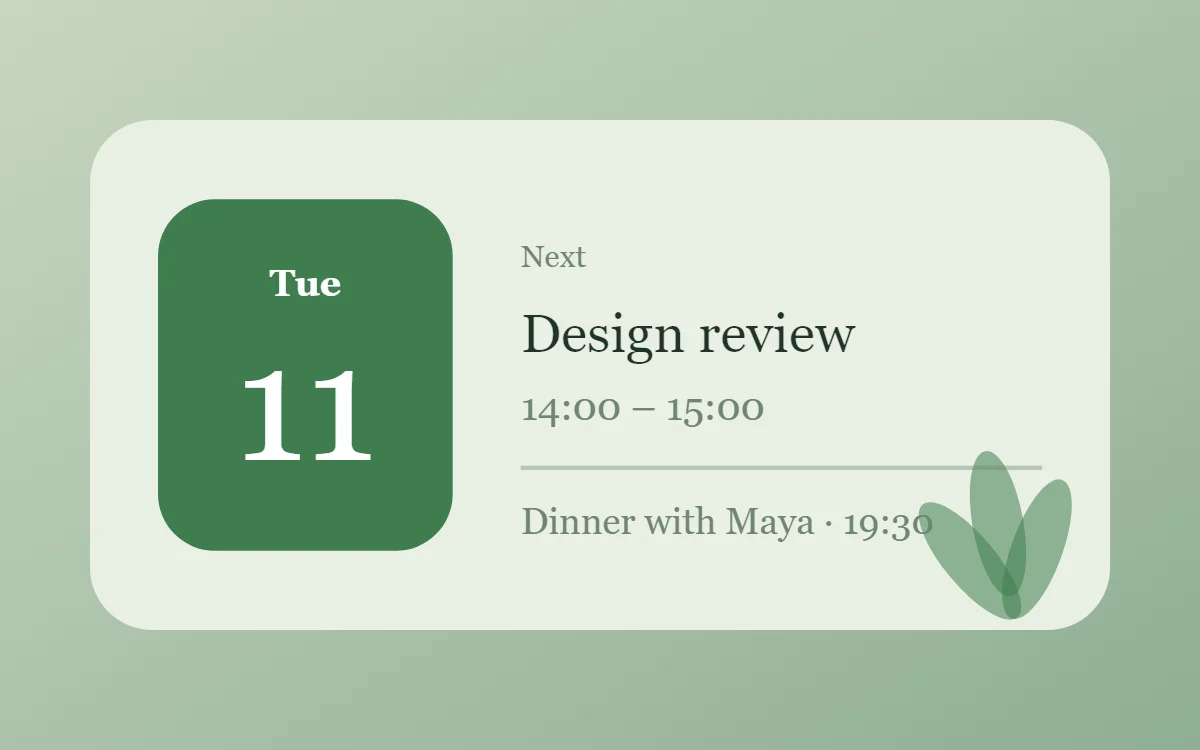
A botanical calendar widget shows today's date beside your next event. Deep greens, leaf photos and natural textures. This page gives the exact colors, type settings and layers, with a preview drawn from the same values.
What a botanical calendar widget shows
A calendar widget answers two questions: what day is it, and what is next. The date sits in a bold block on the left and the next event takes the right side.
The date works with no permission. Showing events needs Android's calendar permission and a calendar connection, which is a Pro feature in WidgetCraft. Without it you can still build the date block on its own for free.
How the botanical style shapes it
Botanical widgets bring plants onto the home screen: deep and soft greens, leaf photographs and a calm serif or sans. They pair naturally with nature wallpapers.
- Numbers: Keep numbers in dark fern with a small moss label.
- Lists: Use small green dots as markers.
Botanical calendar widget recipe
| Layer | Settings |
|---|---|
| Canvas | 360 × 180, background #E9EFE4, corner radius 22 |
| Shape | date block 104 × 124, radius 20, fill #3F7D4E |
| Date | weekday (size 13) and day number (size 58) centered on the block, color #FFFFFF |
| Text | label "Next", size 11, color #6E8574 |
| List or Text | next event title, Libre Baskerville, size 19, color #1F3327; time at size 14 in #6E8574 |
| Shape | divider 1.5 pt in #6E8574 at 40% opacity |
| Ornament | three leaf shapes (tall ovals) fanning up from the bottom right corner in fern green at about 55% opacity |
| Font | Libre Baskerville (import the font file), or the built-in Serif |
| Home screen size | 4 × 2 cells |
Botanical color palette
- Leaf mist
#E9EFE4Background - Sage
#D3DFCCSurface and tracks - Deep fern
#1F3327Text - Moss
#6E8574Labels - Fern green
#3F7D4EAccent
How to make a botanical calendar widget in WidgetCraft
- Create a widget and open Canvas. Set the size to 360 × 180, the background to #E9EFE4 and the corner radius to 22.
- Add a Shape on the left, 104 × 124 with radius 20, filled with #3F7D4E.
- Add two Date layers over it: the short weekday at size 13 and the day number at size 58, both in #FFFFFF.
- Add a Text label "Next" at size 11 in #6E8574.
- Add a List layer, open Data and choose your calendar. Set the title to size 19 in #1F3327 and the time to size 14 in #6E8574.
- Add the botanical ornament with Shape layers and move them below the other layers in Layers: three leaf shapes (tall ovals) fanning up from the bottom right corner in fern green at about 55% opacity.
- Tap Save, then Add to home screen and resize the widget on your launcher if needed.
The layout and styling are free. The live data connection for this widget needs WidgetCraft Pro, a one-time purchase.
Tips for botanical calendar widgets
- Take all colors from one plant photo.
- Mix one large photo with a little text.
- Event titles vary in length, so give the title a single line and let it truncate.
- Show one or two events at most in a 4 × 2 widget.
- If no events appear, check that the calendar you chose is the one your events are saved in.
- Do not use competing bright colors.
- Do not crop leaves into tiny thumbnails.
Questions about the botanical calendar widget
What size is a botanical calendar widget?
It is designed for 4 × 2 home screen cells on a 360 × 180 canvas. You can resize it on the launcher and the design scales in proportion.
Which colors does it use?
Leaf mist (#E9EFE4) for the background, Deep fern (#1F3327) for the main text, Moss (#6E8574) for labels and Fern green (#3F7D4E) as the accent.
Is it free to make?
The botanical design is free to build. Showing live events needs the one-time Pro upgrade.
What else is this style called?
People also search for plant calendar widget, nature calendar widget, leaf calendar widget, green aesthetic calendar widget. They describe the same look as this botanical calendar widget.
More botanical widgets
- Botanical clock widget
- Botanical analog clock widget
- Botanical battery widget
- Botanical countdown widget
- Botanical to-do list widget
- Botanical photo widget
- Botanical quote widget
- Botanical music widget
- Botanical year progress widget
- Botanical step counter widget
- Botanical habit tracker widget
- Botanical sticky note widget
- Botanical world clock widget
- Botanical date widget
- Botanical home screen setup
- All botanical widgets