 WidgetCraftGet the app
Cyberpunk · World clock · 4 × 2 widget
Cyberpunk world clock widget
A cyberpunk world clock widget shows the time in three cities side by side. Yellow and cyan interface panels with angular, technical type. This page gives the exact colors, type settings and layers, with a preview drawn from the same values.
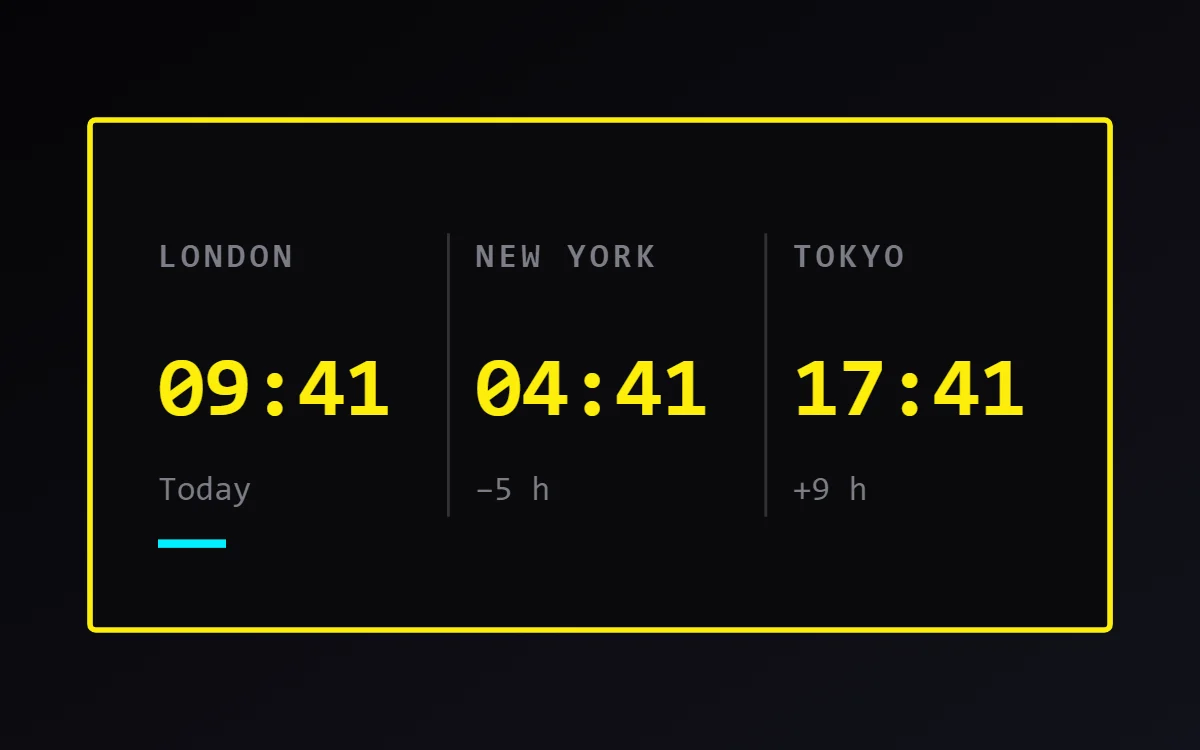
What a cyberpunk world clock widget shows
A world clock widget is for anyone with family, friends or colleagues in another time zone. Three cities in columns, each with its time and a day hint, answer "is it too late to call?" at a glance.
Each clock layer in WidgetCraft can use its own time zone, chosen by city. It is free, works offline and needs no permission; daylight saving is handled automatically.
How the cyberpunk style shapes it
Cyberpunk widgets look like a readout from a science-fiction interface: acid yellow on black, cyan data lines, capital labels with codes and numbers, and sharp angled panels.
- Numbers: Show numbers in yellow with a small cyan unit label beside them.
- Text: Write labels as short codes in capitals, for example SYS or PWR, with wide spacing.
Cyberpunk world clock widget recipe
| Layer | Settings |
|---|---|
| Canvas | 360 × 180, background #0A0A0C, corner radius 2, outline 2 pt #FCEE0A |
| Text | city names, size 12, color #7C7C86, capitals |
| Clock × 3 | format HH:mm, Orbitron, size 30, color #FCEE0A, each set to its own time zone |
| Text | offset such as "+9 h", size 12, color #7C7C86 |
| Shapes | two vertical dividers in #7C7C86 at 35% opacity, and a short #00F0FF rule under your home city |
| Font | Orbitron (import the font file), or the built-in Mono |
| Home screen size | 4 × 2 cells |
Cyberpunk color palette
- Void
#0A0A0CBackground - Carbon
#16161ASurface and tracks - Acid yellow
#FCEE0AText - Steel
#7C7C86Labels - Cyan
#00F0FFAccent
How to make a cyberpunk world clock widget in WidgetCraft
- Create a widget and open Canvas. Set the size to 360 × 180, the background to #0A0A0C and the corner radius to 2. Add a 2-point outline.
- Tap Add and choose Clock. Set the format to hours and minutes, the font to Orbitron, the size to 30 and the color to #FCEE0A.
- Duplicate the clock twice and space the three about 112 apart. Open each copy's details, choose Time zone and pick its city.
- Add a Text label above each clock with the city name at size 12 in #7C7C86, and the offset below it.
- Add thin Shape dividers between the columns and a short rule in #00F0FF under your own city.
- Tap Save, then Add to home screen and resize the widget on your launcher if needed.
Everything in this recipe works in the free version.
Tips for cyberpunk world clock widgets
- Keep corners sharp and add one thin accent line.
- Use yellow for values and cyan for structure.
- Three cities fit a 4 × 2 widget; four make the numbers too small.
- Add the day offset, such as "+1 day", when a city is already tomorrow.
- Put your own city first so the others read relative to it.
- Do not use soft rounded fonts.
- Do not use more than three colors.
Questions about the cyberpunk world clock widget
What size is a cyberpunk world clock widget?
It is designed for 4 × 2 home screen cells on a 360 × 180 canvas. You can resize it on the launcher and the design scales in proportion.
Which colors does it use?
Void (#0A0A0C) for the background, Acid yellow (#FCEE0A) for the main text, Steel (#7C7C86) for labels and Cyan (#00F0FF) as the accent.
Is it free to make?
Yes. World clock widgets use free features in WidgetCraft, and the cyberpunk styling is free too.
What else is this style called?
People also search for futuristic world clock widget, sci-fi world clock widget, hud world clock widget, tech world clock widget. They describe the same look as this cyberpunk world clock widget.
More cyberpunk widgets
- Cyberpunk clock widget
- Cyberpunk analog clock widget
- Cyberpunk calendar widget
- Cyberpunk battery widget
- Cyberpunk countdown widget
- Cyberpunk to-do list widget
- Cyberpunk photo widget
- Cyberpunk quote widget
- Cyberpunk music widget
- Cyberpunk year progress widget
- Cyberpunk step counter widget
- Cyberpunk habit tracker widget
- Cyberpunk sticky note widget
- Cyberpunk date widget
- Cyberpunk home screen setup
- All cyberpunk widgets