 WidgetCraftGet the app
Flat · Battery · 2 × 2 widget
Flat battery widget
A flat battery widget shows your charge level as a ring with the percentage in the middle. Solid colors, no shadows, no gradients and clear shapes. This page gives the exact colors, type settings and layers, with a preview drawn from the same values.
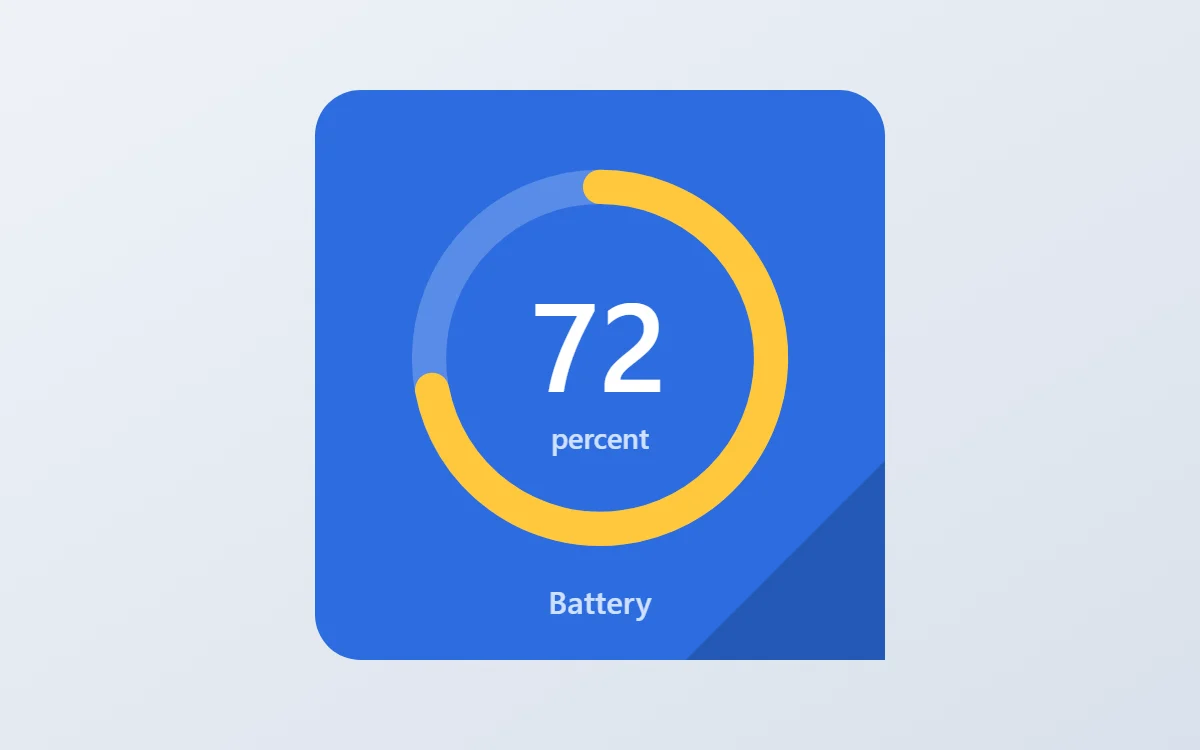
What a flat battery widget shows
A battery widget turns one number into a shape you can read without thinking. A ring that fills clockwise is the clearest form, with the percentage inside it.
Battery level is a free, built-in source in WidgetCraft and needs no permission. The widget refreshes when the charge changes or the charger is connected.
How the flat style shapes it
Flat widgets use blocks of solid color with white text and simple shapes. There is no depth at all, which keeps them crisp at any size and quick to build.
- Bars and rings: Use solid bars in the yellow accent on a darker shade of the background.
- Numbers: Keep numbers white and semi-bold.
Flat battery widget recipe
| Layer | Settings |
|---|---|
| Canvas | 200 × 200, background #2D6CDF, corner radius 16 |
| Ring | diameter 120, stroke 12, track #CFE0FF at 28% opacity, progress #FFC83D, round ends, start at top |
| Battery | level as a number, built-in Sans, size 44, color #FFFFFF, centered in the ring |
| Text | "percent" at size 10 and "Battery" at size 11, color #CFE0FF |
| Ornament | a darker cobalt triangle filling the bottom right corner |
| Font | built-in Sans |
| Home screen size | 2 × 2 cells |
Flat color palette
- Cobalt
#2D6CDFBackground - Deep cobalt
#2459B8Surface and tracks - White
#FFFFFFText - Pale blue
#CFE0FFLabels - Sun yellow
#FFC83DAccent
How to make a flat battery widget in WidgetCraft
- Create a widget and open Canvas. Set the size to 200 × 200, the background to #2D6CDF and the corner radius to 16.
- Tap Add and choose Ring. Set the diameter to 120 and the stroke to 12.
- Open Data for the ring and connect it to Battery level with a range of 0 to 100.
- Color the progress #FFC83D and the track #CFE0FF at about 28% opacity.
- Add a Battery layer in the center at size 44 in #FFFFFF, then a small Text label underneath.
- Add the flat ornament with Shape layers and move them below the other layers in Layers: a darker cobalt triangle filling the bottom right corner.
- Tap Save, then Add to home screen and resize the widget on your launcher if needed.
Everything in this recipe works in the free version.
Tips for flat battery widgets
- Pick one strong background color per widget.
- Use a darker shade of the same color for tracks.
- Start the ring at the top and fill clockwise; other start points are harder to read.
- Keep the track visible at low opacity so an almost-empty ring still looks like a ring.
- A battery widget shows the phone only. Earbuds and watches need their maker's own widget.
- Do not add shadows or gradients.
- Do not use more than one accent.
Questions about the flat battery widget
What size is a flat battery widget?
It is designed for 2 × 2 home screen cells on a 200 × 200 canvas. You can resize it on the launcher and the design scales in proportion.
Which colors does it use?
Cobalt (#2D6CDF) for the background, White (#FFFFFF) for the main text, Pale blue (#CFE0FF) for labels and Sun yellow (#FFC83D) as the accent.
Is it free to make?
Yes. Battery widgets use free features in WidgetCraft, and the flat styling is free too.
What else is this style called?
People also search for flat design battery widget, solid color battery widget, simple color battery widget. They describe the same look as this flat battery widget.
More flat widgets
- Flat clock widget
- Flat analog clock widget
- Flat calendar widget
- Flat countdown widget
- Flat to-do list widget
- Flat photo widget
- Flat quote widget
- Flat music widget
- Flat year progress widget
- Flat step counter widget
- Flat habit tracker widget
- Flat sticky note widget
- Flat world clock widget
- Flat date widget
- Flat home screen setup
- All flat widgets