 WidgetCraftGet the app
Neon · Sticky note · 2 × 2 widget
Neon sticky note widget
A neon sticky note widget keeps a short note or list on your home screen like a sticky note. Glowing pink and cyan outlines on near-black. This page gives the exact colors, type settings and layers, with a preview drawn from the same values.
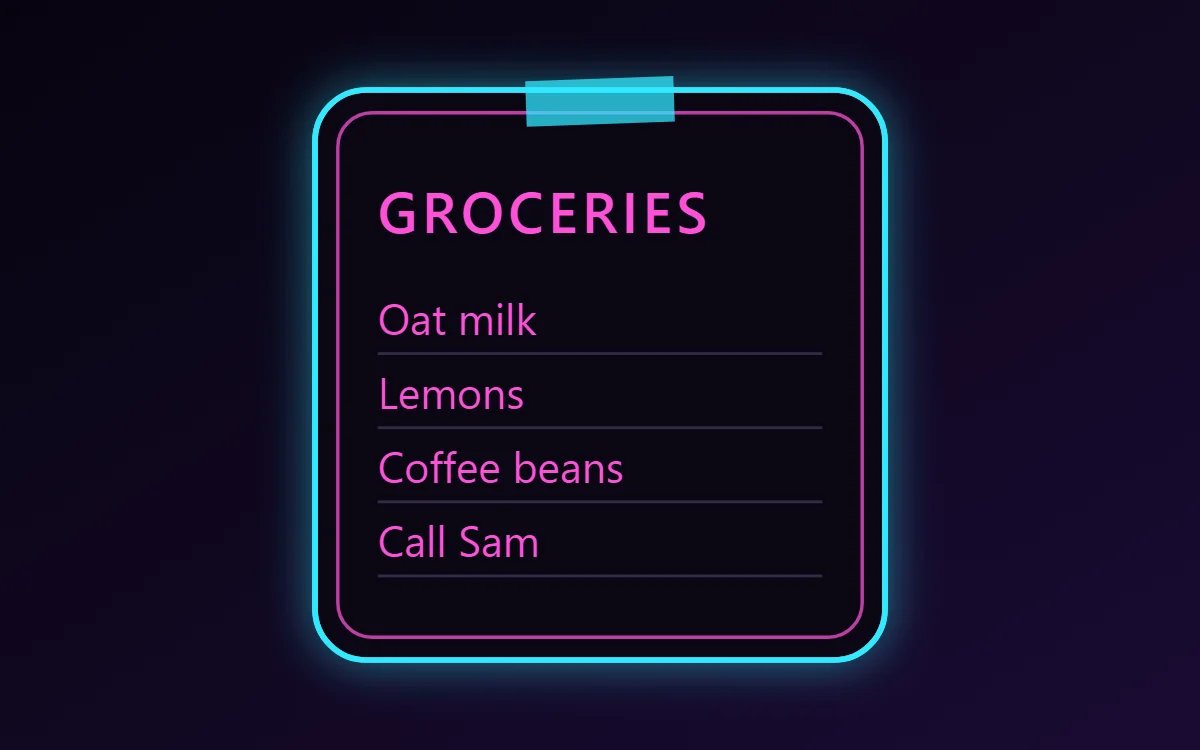
What a neon sticky note widget shows
A sticky note widget holds a few words you need to see: a shopping list, a reminder, a phone number. It works best short, with a bold title and three or four lines.
Type the note straight into a Text layer, or keep notes in WidgetCraft's Tasks, notes & habits section and show them with the Saved notes list. Both are free, stay on the phone and need no permission.
How the neon style shapes it
Neon widgets imitate glowing tube signs: bright pink, cyan or lime outlines on a very dark ground with a soft halo. They are striking at night and pair well with dark wallpapers.
- Text: Color text in one neon tone and keep labels in a dim violet grey.
Neon sticky note widget recipe
| Layer | Settings |
|---|---|
| Canvas | 200 × 200, background #0B0714, corner radius 18, outline 2 pt #31E8FF, shadow #31E8FF radius 12 for glow |
| Shape | "tape" strip 52 × 16 at the top center in #31E8FF at 75% opacity, rotated 2° |
| Text | title, Tilt Neon, size 20, color #FF4FD8 |
| Text | four lines at size 15, line spacing 1.7, color #FF4FD8 |
| Shapes | hairline rules under each line in #8F7FB3 at 30% opacity |
| Ornament | a second, thinner outline in hot pink inset 8 points, so the frame reads as two glowing tubes |
| Font | Tilt Neon (import the font file), or the built-in Sans |
| Home screen size | 2 × 2 cells |
Neon color palette
- Night
#0B0714Background - Deep violet
#170D2BSurface and tracks - Hot pink
#FF4FD8Text - Dusk grey
#8F7FB3Labels - Cyan
#31E8FFAccent
How to make a neon sticky note widget in WidgetCraft
- Create a widget and open Canvas. Set the size to 200 × 200, the background to #0B0714 and the corner radius to 18. Add a 2-point outline.
- Add a Shape 52 × 16 at the top center in #31E8FF at 75% opacity, like a strip of tape, and rotate it 2°.
- Add a Text layer for the title at size 20 in #FF4FD8 using Tilt Neon.
- Add a second Text layer for the note, one item per line, at size 15 with line spacing 1.7. To show notes you keep in the app instead, add Saved notes.
- Add thin Shape rules under each line in #8F7FB3 at 30% opacity for a ruled-paper look.
- Add the neon ornament with Shape layers and move them below the other layers in Layers: a second, thinner outline in hot pink inset 8 points, so the frame reads as two glowing tubes.
- Tap Save, then Add to home screen and resize the widget on your launcher if needed.
Everything in this recipe works in the free version.
Tips for neon sticky note widgets
- Add a shadow in the same color as the text with radius 8 to 12 for glow.
- Use two neon colors at most.
- Four short lines is the most a 2 × 2 note can hold at a readable size.
- Use line breaks rather than long sentences so the note scans at a glance.
- For a list you tick off, use a to-do widget instead.
- Do not put neon on light backgrounds.
- Do not fill large areas with neon color; outlines glow better.
Questions about the neon sticky note widget
What size is a neon sticky note widget?
It is designed for 2 × 2 home screen cells on a 200 × 200 canvas. You can resize it on the launcher and the design scales in proportion.
Which colors does it use?
Night (#0B0714) for the background, Hot pink (#FF4FD8) for the main text, Dusk grey (#8F7FB3) for labels and Cyan (#31E8FF) as the accent.
Is it free to make?
Yes. Sticky note widgets use free features in WidgetCraft, and the neon styling is free too.
What else is this style called?
People also search for neon sign sticky note widget, glow sticky note widget, neon aesthetic sticky note widget. They describe the same look as this neon sticky note widget.
More neon widgets
- Neon clock widget
- Neon analog clock widget
- Neon calendar widget
- Neon battery widget
- Neon countdown widget
- Neon to-do list widget
- Neon photo widget
- Neon quote widget
- Neon music widget
- Neon year progress widget
- Neon step counter widget
- Neon habit tracker widget
- Neon world clock widget
- Neon date widget
- Neon home screen setup
- All neon widgets