 WidgetCraftGet the app
Space · Home screen setup
Space home screen setup
Space widgets use deep navy and violet with white text and tiny star dots. Circles become planets and orbits, which suits clocks, countdowns and step rings. This setup uses three widgets, one wallpaper and one palette so the whole screen reads as a single design.
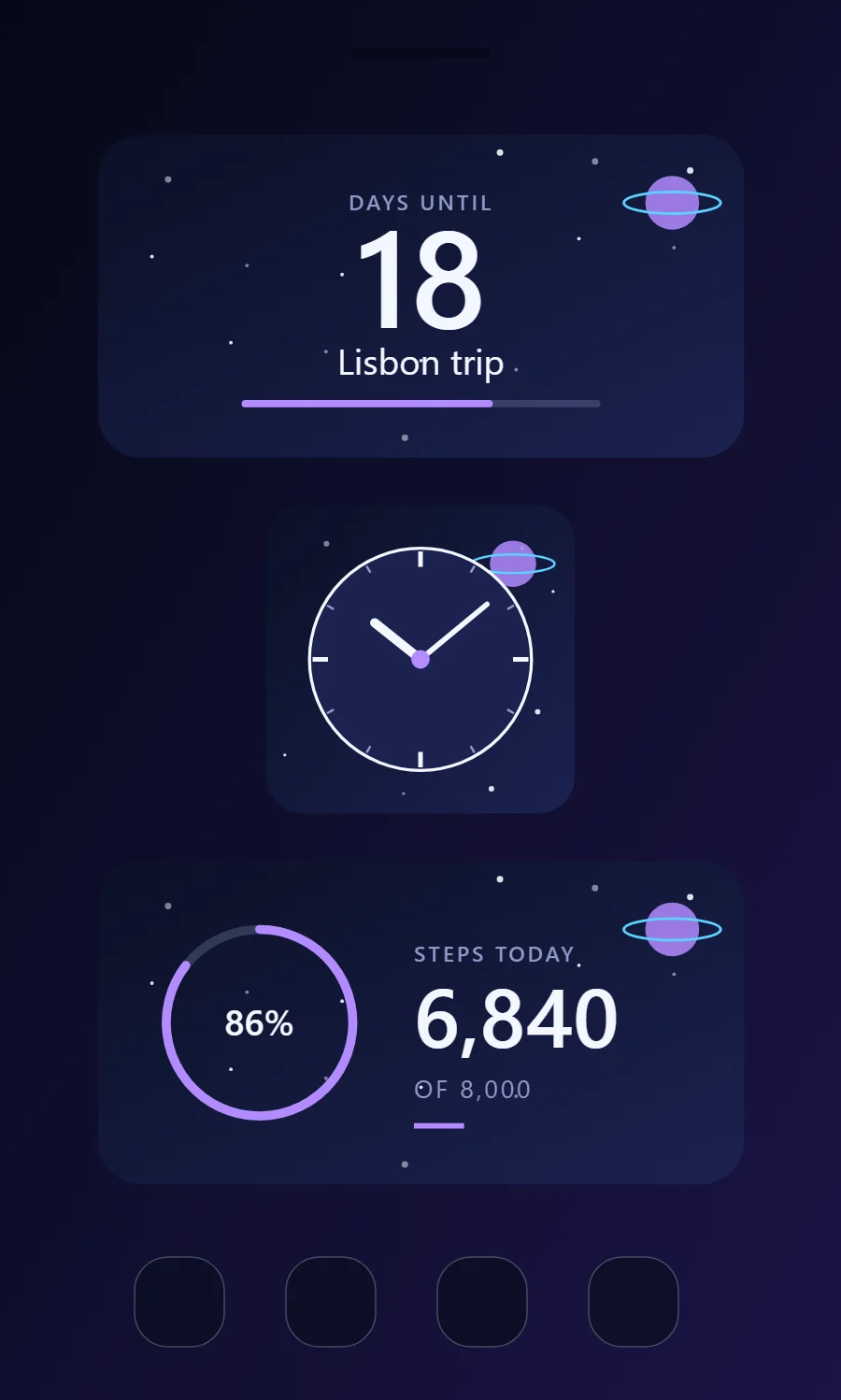
The three space widgets
- Space countdown widget (4 × 2): counts the days left until a date you choose.
- Space analog clock widget (2 × 2): shows the time on a round dial with hour and minute hands.
- Space step counter widget (4 × 2): shows today's steps against your goal.
Place them top to bottom in that order and leave the row above the dock empty so the wallpaper has room.
Countdown widget settings
A countdown widget keeps one date in view: a trip, a birthday, an exam or a launch. The number of days is the hero, the event name gives it meaning and a bar shows how far along you are.
- Canvas: 360 × 180, background gradient #0B1026 to #1B2250 at 45°, corner radius 24
- Layout: stacked: label, number and event name, center aligned
- Text: label "Days until", size 12, color #8F9AC9
- Numbers: Center the number in starlight white.
Free to build. Full recipe and steps.
Analog clock widget settings
An analog clock reads as a shape rather than as numbers, which makes it the most decorative way to show the time. WidgetCraft has a dedicated analog layer where the dial, markers and each hand can be styled separately.
- Canvas: 200 × 200, background gradient #0B1026 to #1B2250 at 45°, corner radius 24
- Analog: dial #1B2250, ring 2 pt in #F4F6FF
- Markers: 12 ticks, quarter-hours in #F4F6FF (3 pt), others in #8F9AC9 (1.5 pt)
- Bars and rings: Use thin orbit rings and small filled circles as planets.
Free to build. Full recipe and steps.
Step counter widget settings
A step widget shows one number and how close it is to a goal. A ring on one side and the count on the other reads well at a glance.
- Canvas: 360 × 180, background gradient #0B1026 to #1B2250 at 45°, corner radius 24
- Ring: diameter 104, stroke 5, progress #B38BFF, range 0 to your goal
- Text: percentage inside the ring, size 20, color #F4F6FF
- Bars and rings: Use thin orbit rings and small filled circles as planets.
Styling is free; the live data needs Pro. Full recipe and steps.
How to set up a space home screen
- Set the wallpaper first, so you can judge every color against it.
- Build the countdown widget and add it to the home screen at 4 × 2.
- Duplicate its canvas settings for the analog clock and step counter widgets so the background, radius and outline match exactly.
- Place all three, then adjust margins until the left edges line up.
- Change the icons last, and remove any app you do not use daily from the page.
Space wallpaper ideas
A star field, a nebula or a plain navy gradient.
Space icons and dock
White glyphs or space-themed icons.
Space home screen colors
- Deep space
#0B1026Background - Nebula blue
#1B2250Surface and tracks - Starlight
#F4F6FFText - Dust
#8F9AC9Labels - Violet
#B38BFFAccent
Fonts for a space home screen
Use Space Grotesk (import the font file), or the built-in Sans at weight 500, with labels in capitals. Corner radius is 24 on every widget so the shapes match.
Do and avoid
- Use a gradient from navy to violet.
- Add a few small white circles as stars.
- Do not use bright daytime colors.
- Do not overfill; space needs emptiness.