 WidgetCraftGet the app
Blue · Music player · 4 × 2 widget
Blue music widget
A blue music widget shows the song that is playing with play, pause and skip controls. Calm sky and navy tones. This page gives the exact colors, type settings and layers, with a preview drawn from the same values.
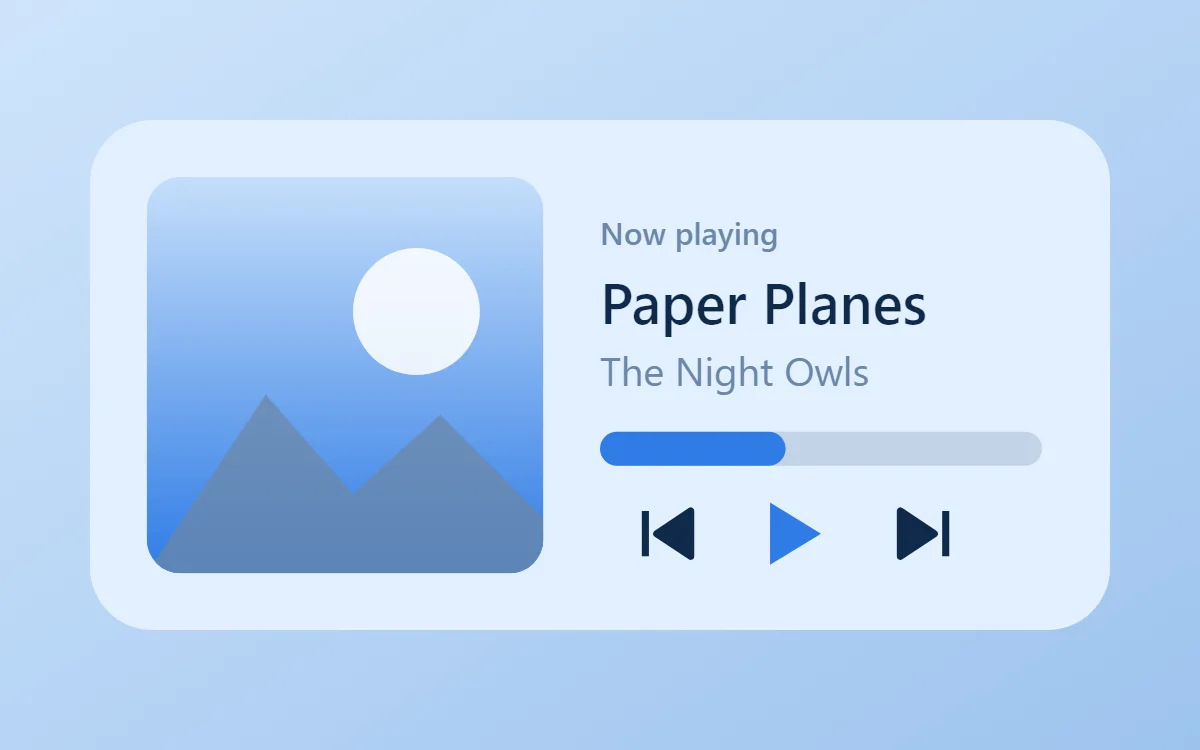
What a blue music widget shows
A now-playing widget shows cover art, the track and artist, a progress line and three controls. It works with whichever app is playing, not one particular service.
Reading the current track needs Android's notification access and a media connection, which is a Pro feature in WidgetCraft. The controls send play, pause and skip to the app that is playing.
How the blue style shapes it
Blue widgets feel calm and clear. This recipe pairs a pale sky background with navy text and a mid-blue accent; flip the colors for a deep navy version.
- Photos: Sea and sky photos match naturally.
- Text: Use navy text and slate-blue labels.
- Bars and rings: Use azure bars on a powder-blue track.
Blue music widget recipe
| Layer | Settings |
|---|---|
| Canvas | 360 × 180, background #E3F0FF, corner radius 22 |
| Image | cover art 140 × 140, radius 12, connected to media artwork |
| Text | track title, built-in Sans, size 20, color #0F2A4A, one line |
| Text | artist, size 14, color #6C87A8 |
| Progress | a thick 12-point bar with rounded ends, 156 wide, progress #2F7BE6 |
| Shapes | previous, play/pause and next; play in #2F7BE6, others in #0F2A4A, each with a tap action |
| Font | built-in Sans |
| Home screen size | 4 × 2 cells |
Blue color palette
- Sky
#E3F0FFBackground - Powder blue
#C5DEFASurface and tracks - Navy
#0F2A4AText - Slate blue
#6C87A8Labels - Azure
#2F7BE6Accent
How to make a blue music widget in WidgetCraft
- Create a widget and open Canvas. Set the size to 360 × 180, the background to #E3F0FF and the corner radius to 22.
- Open Data and set up the media connection; Android will ask for notification access.
- Add an Image layer, 140 × 140 with radius 12, and connect it to the cover art.
- Add two Text layers connected to the track title (size 20, #0F2A4A) and the artist (size 14, #6C87A8).
- Add a Progress layer as a thick 12-point bar with rounded ends in #2F7BE6, then three shapes for the controls. In Tap, assign previous, play/pause and next.
- Tap Save, then Add to home screen and resize the widget on your launcher if needed.
The layout and styling are free. The live data connection for this widget needs WidgetCraft Pro, a one-time purchase.
Tips for blue music widgets
- Stay within one hue from pale to navy.
- Use the brightest blue only for progress.
- Long titles must truncate on one line; never let them wrap into the controls.
- Make each control at least 48 dp wide so it is easy to hit.
- The widget only shows a track while a media app has an active session.
- Do not add warm accents unless you want strong contrast.
- Do not use mid-blue text on a mid-blue background.
Questions about the blue music widget
What size is a blue music widget?
It is designed for 4 × 2 home screen cells on a 360 × 180 canvas. You can resize it on the launcher and the design scales in proportion.
Which colors does it use?
Sky (#E3F0FF) for the background, Navy (#0F2A4A) for the main text, Slate blue (#6C87A8) for labels and Azure (#2F7BE6) as the accent.
Is it free to make?
The blue design is free to build. Showing live track details needs the one-time Pro upgrade.
What else is this style called?
People also search for blue aesthetic music widget, navy music widget, ocean music widget. They describe the same look as this blue music widget.
More blue widgets
- Blue clock widget
- Blue analog clock widget
- Blue calendar widget
- Blue battery widget
- Blue countdown widget
- Blue to-do list widget
- Blue photo widget
- Blue quote widget
- Blue year progress widget
- Blue step counter widget
- Blue habit tracker widget
- Blue sticky note widget
- Blue world clock widget
- Blue date widget
- Blue home screen setup
- All blue widgets