 WidgetCraftGet the app
Coquette · Step counter · 4 × 2 widget
Coquette step counter widget
A coquette step counter widget shows today's steps against your goal. Soft pink, cream and ribbon bows with romantic serif type. This page gives the exact colors, type settings and layers, with a preview drawn from the same values.
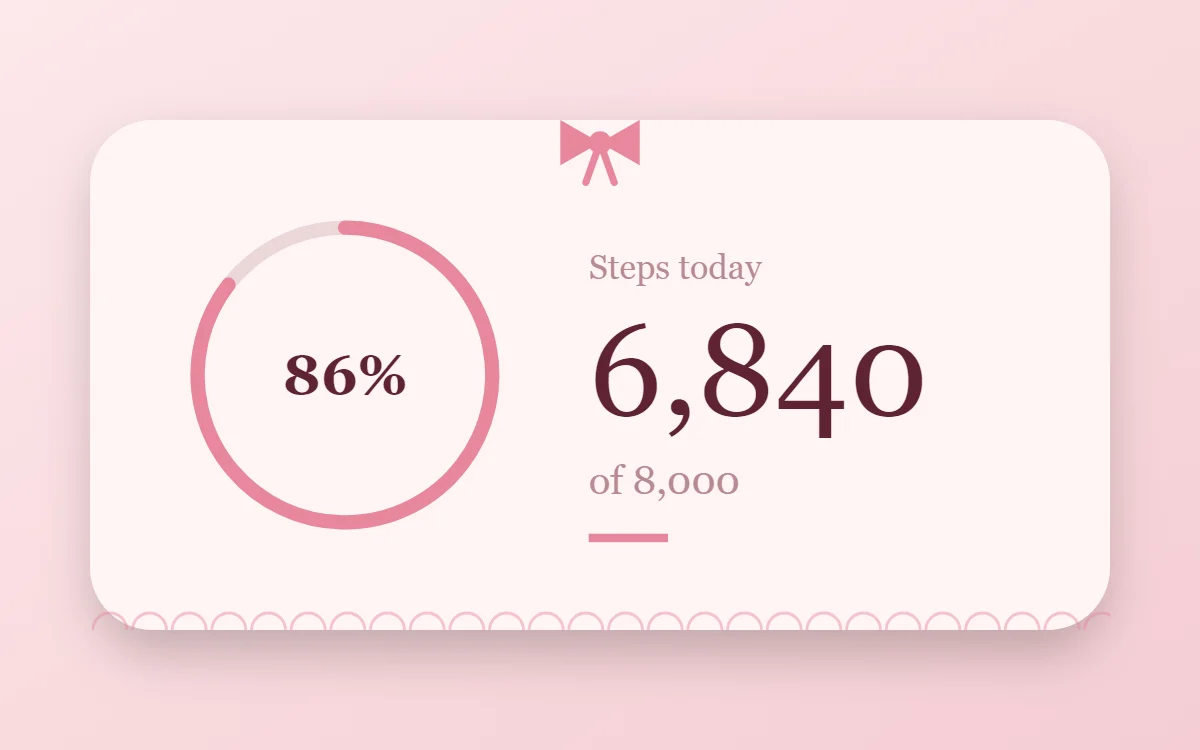
What a coquette step counter widget shows
A step widget shows one number and how close it is to a goal. A ring on one side and the count on the other reads well at a glance.
Steps come from Health Connect, which needs a compatible phone, your permission and a fitness connection (a Pro feature in WidgetCraft). The numbers are whatever your phone or watch has recorded; the widget does not count steps itself.
How the coquette style shapes it
Coquette widgets are delicate and romantic: ballet pink and cream, a deep rose for text, small ribbon bows, lace-like edges and an elegant italic serif.
- Bars and rings: Use thin ribbon-pink bars and finish one corner with a small bow.
- Numbers: Set numbers in the serif at a medium weight, never heavy.
Coquette step counter widget recipe
| Layer | Settings |
|---|---|
| Canvas | 360 × 180, background #FFF4F4, corner radius 22, soft shadow radius 12 at low opacity |
| Ring | diameter 104, stroke 5, progress #E8879C, range 0 to your goal |
| Text | percentage inside the ring, size 20, color #5E2433 |
| Text | label "Steps today", size 12, color #B88A92 |
| Text (fitness) | step count, Playfair Display, size 46, color #5E2433 |
| Text | goal, size 14, color #B88A92 |
| Ornament | a small ribbon bow tied over the top edge at the center (two triangles, two short tails and a center dot) and a row of thin half-circles along the bottom edge like lace |
| Font | Playfair Display (import the font file), or the built-in Serif |
| Home screen size | 4 × 2 cells |
Coquette color palette
- Cream
#FFF4F4Background - Ballet pink
#FBE1E4Surface and tracks - Wine
#5E2433Text - Mauve
#B88A92Labels - Ribbon pink
#E8879CAccent
How to make a coquette step counter widget in WidgetCraft
- Create a widget and open Canvas. Set the size to 360 × 180, the background to #FFF4F4 and the corner radius to 22.
- Open Data and connect Health Connect, allowing access to steps.
- Tap Add and choose Ring. Set the diameter to 104 and the stroke to 5, and connect it to steps with a range from 0 to your goal.
- Color the progress #E8879C.
- Add a Text layer connected to the step count at size 46 in #5E2433, plus a label and your goal in #B88A92.
- Add the coquette ornament with Shape layers and move them below the other layers in Layers: a small ribbon bow tied over the top edge at the center (two triangles, two short tails and a center dot) and a row of thin half-circles along the bottom edge like lace.
- Tap Save, then Add to home screen and resize the widget on your launcher if needed.
The layout and styling are free. The live data connection for this widget needs WidgetCraft Pro, a one-time purchase.
Tips for coquette step counter widgets
- Add one bow per widget, not several.
- Keep the palette to pinks, cream and one warm gold.
- Show the goal next to the count so the ring has meaning.
- Step data can lag by a few minutes depending on the app that records it.
- This is an activity display, not medical advice.
- Do not use bold sans-serif fonts.
- Do not add bright, saturated colors.
Questions about the coquette step counter widget
What size is a coquette step counter widget?
It is designed for 4 × 2 home screen cells on a 360 × 180 canvas. You can resize it on the launcher and the design scales in proportion.
Which colors does it use?
Cream (#FFF4F4) for the background, Wine (#5E2433) for the main text, Mauve (#B88A92) for labels and Ribbon pink (#E8879C) as the accent.
Is it free to make?
The coquette design is free to build. Showing live step data needs the one-time Pro upgrade.
What else is this style called?
People also search for coquette aesthetic step counter widget, bow step counter widget, girly step counter widget, balletcore step counter widget. They describe the same look as this coquette step counter widget.
More coquette widgets
- Coquette clock widget
- Coquette analog clock widget
- Coquette calendar widget
- Coquette battery widget
- Coquette countdown widget
- Coquette to-do list widget
- Coquette photo widget
- Coquette quote widget
- Coquette music widget
- Coquette year progress widget
- Coquette habit tracker widget
- Coquette sticky note widget
- Coquette world clock widget
- Coquette date widget
- Coquette home screen setup
- All coquette widgets