 WidgetCraftGet the app
Dark academia · Clock · 4 × 2 widget
Dark academia clock widget
A dark academia clock widget shows the time in large numerals with the day and date beneath. Old libraries: deep brown, parchment, gold and classic serifs. This page gives the exact colors, type settings and layers, with a preview drawn from the same values.
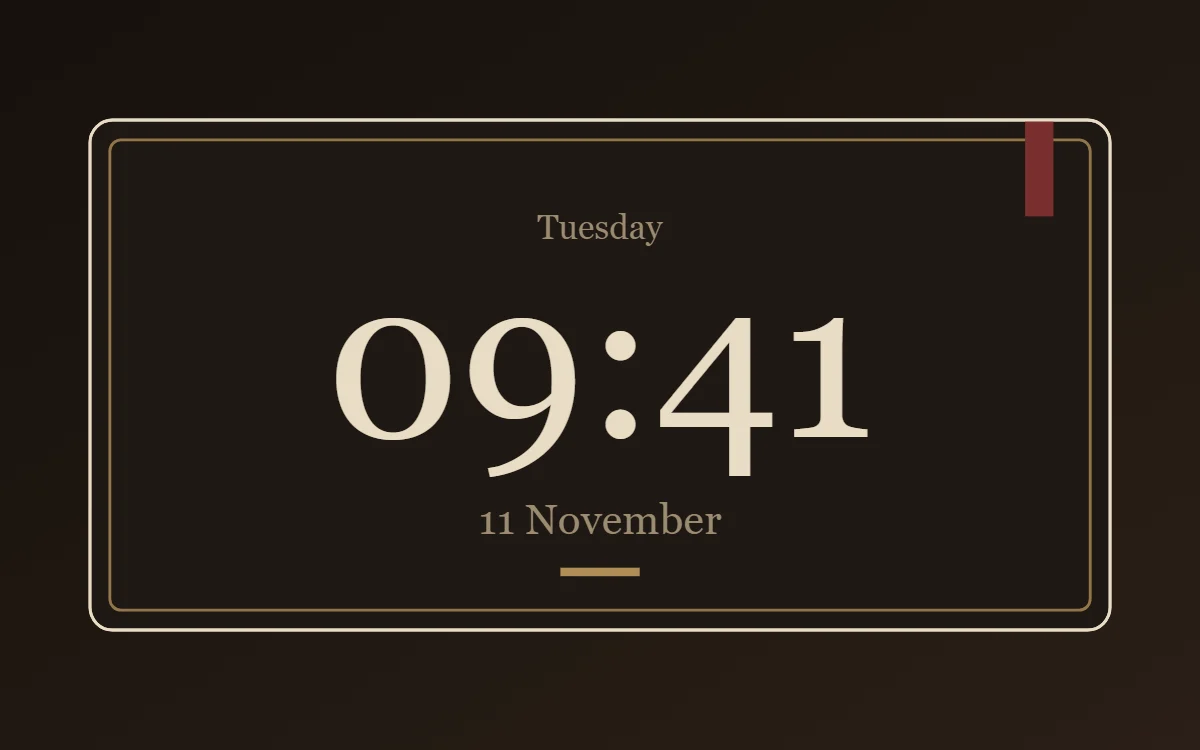
What a dark academia clock widget shows
A digital clock is the widget most people place first. It needs to be readable from arm's length, so the time takes most of the space and the date sits quietly below it.
It uses the phone's own time, so it needs no permission and works offline. WidgetCraft's clock layer follows your 12- or 24-hour setting unless you choose a format.
How the dark academia style shapes it
Dark academia widgets look like a leather-bound notebook: deep brown and black grounds, parchment text, a gold accent and classical serif type suited to quotes and reading goals.
- Numbers: Use old-style serif numerals, centered, with a brass rule beneath.
- Text: Use a classical serif in parchment and set labels in small capitals.
Dark academia clock widget recipe
| Layer | Settings |
|---|---|
| Canvas | 360 × 180, background #1F1813, corner radius 8, outline 1 pt #E8DCC4 |
| Layout | stacked: weekday, time, then date, all center aligned |
| Text or Date | weekday, Cormorant Garamond, size 12, color #9C8B72 |
| Clock | format HH:mm, Cormorant Garamond, weight 500, size 78, color #E8DCC4, center aligned |
| Date | day and month, size 15, color #9C8B72 |
| Shape | small dot or rule in #B08D57 |
| Ornament | a thin brass outline inset 7 points, and a short burgundy ribbon (a 10 × 34 rectangle) hanging from the top right like a bookmark |
| Font | Cormorant Garamond (import the font file), or the built-in Serif |
| Home screen size | 4 × 2 cells |
Dark academia color palette
- Walnut
#1F1813Background - Leather
#2C221ASurface and tracks - Parchment
#E8DCC4Text - Dust
#9C8B72Labels - Brass
#B08D57Accent
How to make a dark academia clock widget in WidgetCraft
- Create a widget and open Canvas. Set the size to 360 × 180, the background to #1F1813 and the corner radius to 8. Add a 1-point outline.
- Tap Add and choose Clock. Set the format to hours and minutes, the font to Cormorant Garamond, the size to 78 and the color to #E8DCC4.
- Add a Date layer above it for the weekday at size 12 in #9C8B72.
- Add a second Date layer below for the day and month at size 15.
- Add a small Shape in #B08D57 as the only accent, and center every layer.
- Arrange the layers in the stacked layout: weekday, time, then date, all center aligned.
- Add the dark academia ornament with Shape layers and move them below the other layers in Layers: a thin brass outline inset 7 points, and a short burgundy ribbon (a 10 × 34 rectangle) hanging from the top right like a bookmark.
- Tap Save, then Add to home screen and resize the widget on your launcher if needed.
Everything in this recipe works in the free version.
Tips for dark academia clock widgets
- Keep the background very dark brown rather than black.
- Use brass for lines and one burgundy detail.
- Seconds make a home screen widget look busy and Android updates widgets about once a minute, so leave them out.
- Check the widest time, such as 22:58 or 12:48 PM, so it never touches the edges.
- If the launcher crops the widget, reduce the time size before reducing the margins.
- Do not use sans-serif display type.
- Do not use bright white text.
Questions about the dark academia clock widget
What size is a dark academia clock widget?
It is designed for 4 × 2 home screen cells on a 360 × 180 canvas. You can resize it on the launcher and the design scales in proportion.
Which colors does it use?
Walnut (#1F1813) for the background, Parchment (#E8DCC4) for the main text, Dust (#9C8B72) for labels and Brass (#B08D57) as the accent.
Is it free to make?
Yes. Clock widgets use free features in WidgetCraft, and the dark academia styling is free too.
What else is this style called?
People also search for academia clock widget, library aesthetic clock widget, vintage study clock widget. They describe the same look as this dark academia clock widget.
More dark academia widgets
- Dark academia analog clock widget
- Dark academia calendar widget
- Dark academia battery widget
- Dark academia countdown widget
- Dark academia to-do list widget
- Dark academia photo widget
- Dark academia quote widget
- Dark academia music widget
- Dark academia year progress widget
- Dark academia step counter widget
- Dark academia habit tracker widget
- Dark academia sticky note widget
- Dark academia world clock widget
- Dark academia date widget
- Dark academia home screen setup
- All dark academia widgets