 WidgetCraftGet the app
Gaming HUD · Home screen setup
Gaming HUD home screen setup
Gaming HUD widgets look like the status display of an action game: dark panels, angled corners, health-style bars and bright red, green and purple. This setup uses three widgets, one wallpaper and one palette so the whole screen reads as a single design.
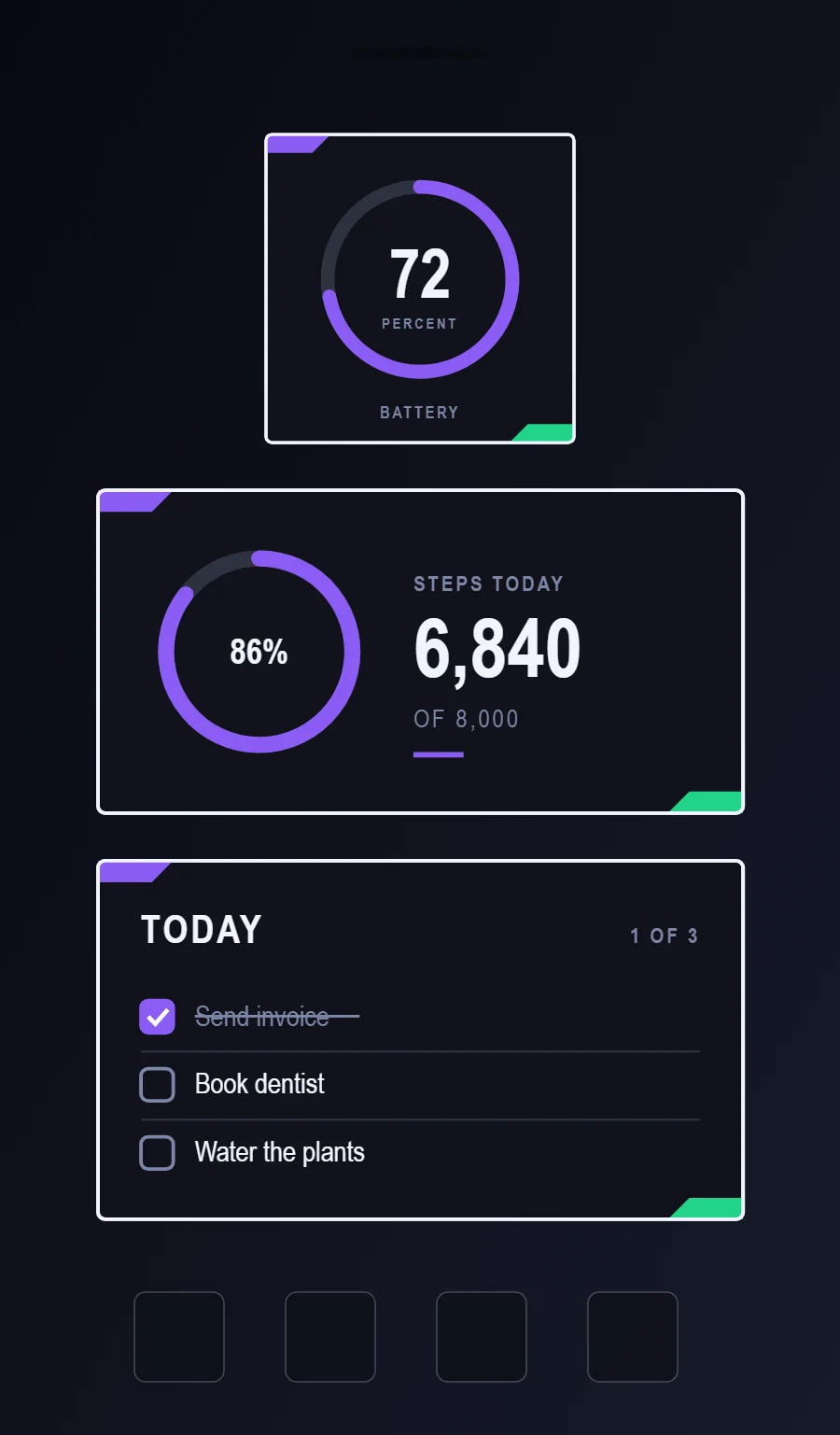
The three gaming HUD widgets
- Gaming HUD battery widget (2 × 2): shows your charge level as a ring with the percentage in the middle.
- Gaming HUD step counter widget (4 × 2): shows today's steps against your goal.
- Gaming HUD to-do list widget (4 × 2): keeps today's tasks on your home screen with boxes you can tick.
Place them top to bottom in that order and leave the row above the dock empty so the wallpaper has room.
Battery widget settings
A battery widget turns one number into a shape you can read without thinking. A ring that fills clockwise is the clearest form, with the percentage inside it.
- Canvas: 200 × 200, background #10121A, corner radius 4, outline 2 pt #F2F4FF
- Ring: diameter 120, stroke 9, track #7D86A8 at 28% opacity, progress #8B5CF6, round ends, start at top
- Battery: level as a number, Rajdhani, size 44, color #F2F4FF, centered in the ring
- Bars and rings: Use segmented bars: green for health, purple for experience.
Free to build. Full recipe and steps.
Step counter widget settings
A step widget shows one number and how close it is to a goal. A ring on one side and the count on the other reads well at a glance.
- Canvas: 360 × 180, background #10121A, corner radius 4, outline 2 pt #F2F4FF
- Ring: diameter 104, stroke 9, progress #8B5CF6, range 0 to your goal
- Text: percentage inside the ring, size 20, color #F2F4FF
- Bars and rings: Use segmented bars: green for health, purple for experience.
Styling is free; the live data needs Pro. Full recipe and steps.
To-do list widget settings
A to-do widget works when it is short. Three tasks, a clear title and a box to tap are enough; a long list belongs in an app.
- Canvas: 360 × 200, background #10121A, corner radius 4, outline 2 pt #F2F4FF
- Text: title "Today", Rajdhani, size 22, color #F2F4FF
- Text: count such as "1 of 3", size 12, color #7D86A8, right aligned
- Lists: Treat rows as quests with a small diamond marker.
Free to build. Full recipe and steps.
How to set up a gaming HUD home screen
- Set the wallpaper first, so you can judge every color against it.
- Build the battery widget and add it to the home screen at 2 × 2.
- Duplicate its canvas settings for the step counter and to-do list widgets so the background, radius and outline match exactly.
- Place all three, then adjust margins until the left edges line up.
- Change the icons last, and remove any app you do not use daily from the page.
Gaming HUD wallpaper ideas
A dark game landscape or abstract dark gradient.
Gaming HUD icons and dock
Angular or neon icon packs.
Gaming HUD home screen colors
- Shadow
#10121ABackground - Panel
#1B1F2ESurface and tracks - White
#F2F4FFText - Steel
#7D86A8Labels - Arcane purple
#8B5CF6Accent
Fonts for a gaming HUD home screen
Use Rajdhani (import the font file), or the built-in Condensed at weight 700, with labels in capitals. Corner radius is 4 on every widget so the shapes match.
Do and avoid
- Name things like game stats to sell the theme.
- Use two bar colors with clear meaning.
- Do not use soft pastel colors.
- Do not round the panels.