 WidgetCraftGet the app
Gaming HUD · To-do list · 4 × 2 widget
Gaming HUD to-do list widget
A gaming HUD to-do list widget keeps today's tasks on your home screen with boxes you can tick. Heads-up display panels with health bars and bright status colors. This page gives the exact colors, type settings and layers, with a preview drawn from the same values.
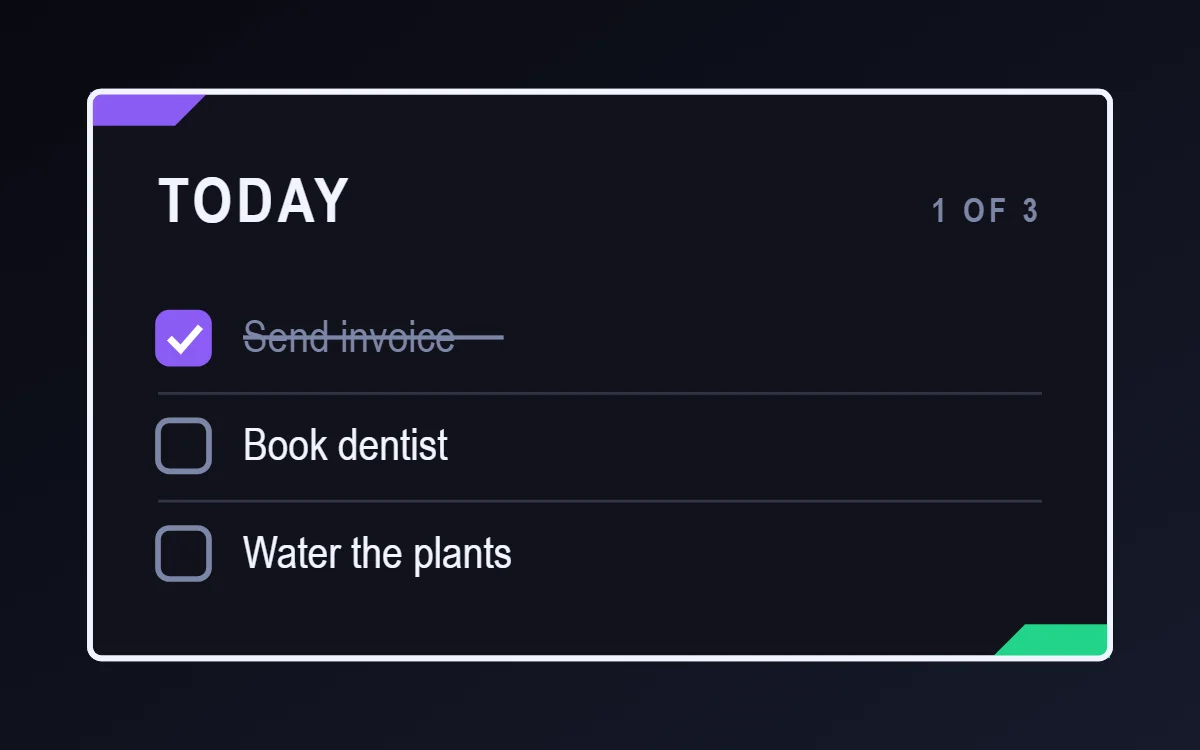
What a gaming HUD to-do list widget shows
A to-do widget works when it is short. Three tasks, a clear title and a box to tap are enough; a long list belongs in an app.
WidgetCraft stores local tasks on the phone, which is a free source and needs no account or permission. Tapping a row can tick the task from the home screen.
How the gaming HUD style shapes it
Gaming HUD widgets look like the status display of an action game: dark panels, angled corners, health-style bars and bright red, green and purple.
- Lists: Treat rows as quests with a small diamond marker.
- Text: Use condensed capitals for stats such as HP, XP or LVL.
Gaming HUD to-do list widget recipe
| Layer | Settings |
|---|---|
| Canvas | 360 × 200, background #10121A, corner radius 4, outline 2 pt #F2F4FF |
| Text | title "Today", Rajdhani, size 22, color #F2F4FF |
| Text | count such as "1 of 3", size 12, color #7D86A8, right aligned |
| List | local tasks, 3 rows, row height 38, text size 16 in #F2F4FF |
| Checkbox | 18 × 18, radius 4, outline #7D86A8; done state filled #8B5CF6 |
| Done rows | text #7D86A8 with strikethrough |
| Ornament | an angled purple tab in the top left corner and a matching green tab in the bottom right |
| Font | Rajdhani (import the font file), or the built-in Condensed |
| Home screen size | 4 × 2 cells |
Gaming HUD color palette
- Shadow
#10121ABackground - Panel
#1B1F2ESurface and tracks - White
#F2F4FFText - Steel
#7D86A8Labels - Arcane purple
#8B5CF6Accent
How to make a gaming HUD to-do list widget in WidgetCraft
- Create a widget and open Canvas. Set the size to 360 × 200, the background to #10121A and the corner radius to 4. Add a 2-point outline.
- Add a Text layer for the title "Today" at size 22 in #F2F4FF.
- Tap Add and choose List. In Data, choose your local task list and limit it to three rows.
- Set the row text to size 16 in #F2F4FF and the checkbox to 18 × 18 with radius 4.
- Style finished rows in #7D86A8 and set the tick color to #8B5CF6. In Tap, set a row tap to tick the task.
- Add the gaming HUD ornament with Shape layers and move them below the other layers in Layers: an angled purple tab in the top left corner and a matching green tab in the bottom right.
- Tap Save, then Add to home screen and resize the widget on your launcher if needed.
Everything in this recipe works in the free version.
Tips for gaming HUD to-do list widgets
- Name things like game stats to sell the theme.
- Use two bar colors with clear meaning.
- Limit the list to three or four rows so each stays easy to tap.
- Make finished tasks visibly different: grey text and a strikethrough.
- Tap targets on a widget should be at least 48 dp high.
- Do not use soft pastel colors.
- Do not round the panels.
Questions about the gaming HUD to-do list widget
What size is a gaming HUD to-do list widget?
It is designed for 4 × 2 home screen cells on a 360 × 200 canvas. You can resize it on the launcher and the design scales in proportion.
Which colors does it use?
Shadow (#10121A) for the background, White (#F2F4FF) for the main text, Steel (#7D86A8) for labels and Arcane purple (#8B5CF6) as the accent.
Is it free to make?
Yes. To-do list widgets use free features in WidgetCraft, and the gaming HUD styling is free too.
What else is this style called?
People also search for gamer to-do list widget, rgb to-do list widget, hud to-do list widget, esports to-do list widget. They describe the same look as this gaming HUD to-do list widget.
More gaming HUD widgets
- Gaming HUD clock widget
- Gaming HUD analog clock widget
- Gaming HUD calendar widget
- Gaming HUD battery widget
- Gaming HUD countdown widget
- Gaming HUD photo widget
- Gaming HUD quote widget
- Gaming HUD music widget
- Gaming HUD year progress widget
- Gaming HUD step counter widget
- Gaming HUD habit tracker widget
- Gaming HUD sticky note widget
- Gaming HUD world clock widget
- Gaming HUD date widget
- Gaming HUD home screen setup
- All gaming HUD widgets