 WidgetCraftGet the app
Gaming HUD · Quote · 4 × 2 widget
Gaming HUD quote widget
A gaming HUD quote widget displays a line you want to see every day. Heads-up display panels with health bars and bright status colors. This page gives the exact colors, type settings and layers, with a preview drawn from the same values.
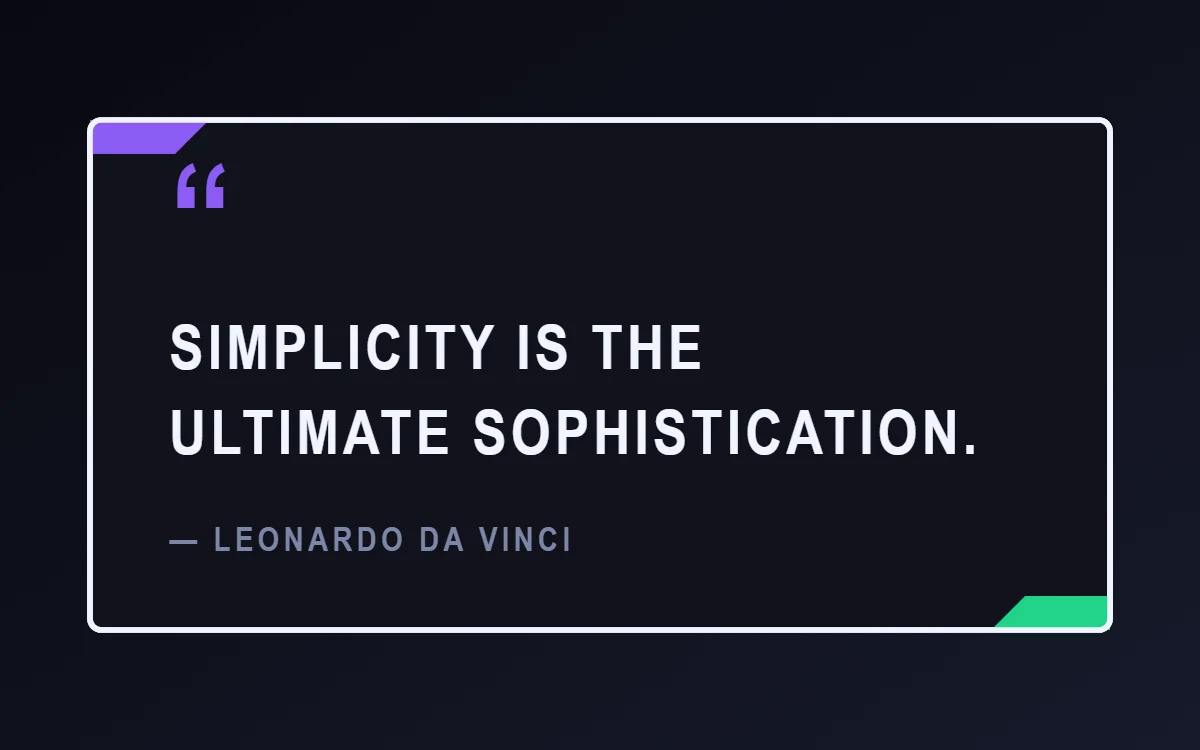
What a gaming HUD quote widget shows
A quote widget is pure typography, so the style shows more clearly here than anywhere else. Line length, line spacing and the size of the quotation mark do the design work.
It is plain text you type yourself: free, offline and with no permission. Change the words whenever you like.
How the gaming HUD style shapes it
Gaming HUD widgets look like the status display of an action game: dark panels, angled corners, health-style bars and bright red, green and purple.
- Text: Use condensed capitals for stats such as HP, XP or LVL.
Gaming HUD quote widget recipe
| Layer | Settings |
|---|---|
| Canvas | 360 × 180, background #10121A, corner radius 4, outline 2 pt #F2F4FF |
| Text | opening quotation mark, size 54, color #8B5CF6 |
| Text | quote in two lines, Rajdhani, weight 700, size 22, line spacing 1.35, color #F2F4FF, left aligned |
| Text | author, size 12, color #7D86A8 |
| Ornament | an angled purple tab in the top left corner and a matching green tab in the bottom right |
| Font | Rajdhani (import the font file), or the built-in Condensed |
| Home screen size | 4 × 2 cells |
Gaming HUD color palette
- Shadow
#10121ABackground - Panel
#1B1F2ESurface and tracks - White
#F2F4FFText - Steel
#7D86A8Labels - Arcane purple
#8B5CF6Accent
How to make a gaming HUD quote widget in WidgetCraft
- Create a widget and open Canvas. Set the size to 360 × 180, the background to #10121A and the corner radius to 4. Add a 2-point outline.
- Add a Text layer and type your quote. Set the font to Rajdhani, the size to 22 and the color to #F2F4FF.
- Press return where you want the line to break, and set the alignment to left.
- Add a second Text layer with just an opening quotation mark at size 54 in #8B5CF6.
- Add the author on its own Text layer at size 12 in #7D86A8.
- Add the gaming HUD ornament with Shape layers and move them below the other layers in Layers: an angled purple tab in the top left corner and a matching green tab in the bottom right.
- Tap Save, then Add to home screen and resize the widget on your launcher if needed.
Everything in this recipe works in the free version.
Tips for gaming HUD quote widgets
- Name things like game stats to sell the theme.
- Use two bar colors with clear meaning.
- Keep quotes under about 12 words so the text can stay large.
- Break lines by meaning, not wherever the text happens to wrap.
- Always credit the author on a separate, smaller line.
- Do not use soft pastel colors.
- Do not round the panels.
Questions about the gaming HUD quote widget
What size is a gaming HUD quote widget?
It is designed for 4 × 2 home screen cells on a 360 × 180 canvas. You can resize it on the launcher and the design scales in proportion.
Which colors does it use?
Shadow (#10121A) for the background, White (#F2F4FF) for the main text, Steel (#7D86A8) for labels and Arcane purple (#8B5CF6) as the accent.
Is it free to make?
Yes. Quote widgets use free features in WidgetCraft, and the gaming HUD styling is free too.
What else is this style called?
People also search for gamer quote widget, rgb quote widget, hud quote widget, esports quote widget. They describe the same look as this gaming HUD quote widget.
More gaming HUD widgets
- Gaming HUD clock widget
- Gaming HUD analog clock widget
- Gaming HUD calendar widget
- Gaming HUD battery widget
- Gaming HUD countdown widget
- Gaming HUD to-do list widget
- Gaming HUD photo widget
- Gaming HUD music widget
- Gaming HUD year progress widget
- Gaming HUD step counter widget
- Gaming HUD habit tracker widget
- Gaming HUD sticky note widget
- Gaming HUD world clock widget
- Gaming HUD date widget
- Gaming HUD home screen setup
- All gaming HUD widgets