 WidgetCraftGet the app
One UI-style · Clock · 4 × 2 widget
One UI-style clock widget
A One UI-style clock widget shows the time in large numerals with the day and date beneath. Samsung-like rounded cards with soft color and clear type. This page gives the exact colors, type settings and layers, with a preview drawn from the same values.
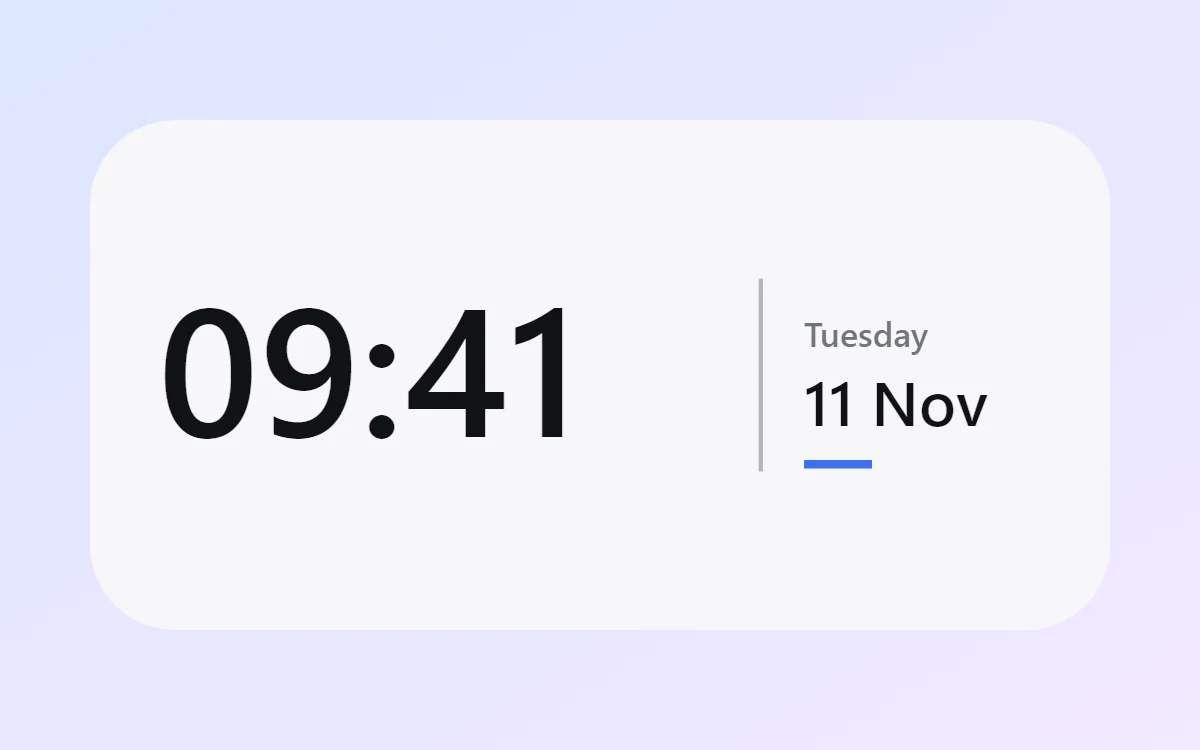
What a One UI-style clock widget shows
A digital clock is the widget most people place first. It needs to be readable from arm's length, so the time takes most of the space and the date sits quietly below it.
It uses the phone's own time, so it needs no permission and works offline. WidgetCraft's clock layer follows your 12- or 24-hour setting unless you choose a format.
How the One UI-style style shapes it
This style follows the widgets on Samsung Galaxy phones: softly colored rounded cards, clear bold headings and comfortable spacing sized for one-handed use. It is inspired by the look, not made by Samsung.
- Numbers: Keep numbers bold and dark with a blue unit or label.
- Text: Use semi-bold headings and regular grey details with comfortable line height.
One UI-style clock widget recipe
| Layer | Settings |
|---|---|
| Canvas | 360 × 180, background #F7F7F9, corner radius 30 |
| Layout | split: the time on the left at size 64, a thin divider at x 236, and the weekday and date stacked in a column on the right |
| Text or Date | weekday, built-in Sans, size 12, color #70747D |
| Clock | format HH:mm, built-in Sans, weight 600, size 78, color #101114, left aligned |
| Date | day and month, size 15, color #70747D |
| Shape | small dot or rule in #3E6EF5 |
| Font | built-in Sans |
| Home screen size | 4 × 2 cells |
One UI-style color palette
- Cloud
#F7F7F9Background - Card blue
#E9ECF5Surface and tracks - Near black
#101114Text - Slate
#70747DLabels - Galaxy blue
#3E6EF5Accent
How to make a One UI-style clock widget in WidgetCraft
- Create a widget and open Canvas. Set the size to 360 × 180, the background to #F7F7F9 and the corner radius to 30.
- Tap Add and choose Clock. Set the format to hours and minutes, the font to built-in Sans, the size to 78 and the color to #101114.
- Add a Date layer above it for the weekday at size 12 in #70747D.
- Add a second Date layer below for the day and month at size 15.
- Add a small Shape in #3E6EF5 as the only accent, and align every layer to the same left margin of 24.
- Arrange the layers in the split layout: the time on the left at size 64, a thin divider at x 236, and the weekday and date stacked in a column on the right.
- Tap Save, then Add to home screen and resize the widget on your launcher if needed.
Everything in this recipe works in the free version.
Tips for One UI-style clock widgets
- Use radius 28 to 32 so the widget matches Samsung cards.
- Keep text large; this style favours reachability.
- Seconds make a home screen widget look busy and Android updates widgets about once a minute, so leave them out.
- Check the widest time, such as 22:58 or 12:48 PM, so it never touches the edges.
- If the launcher crops the widget, reduce the time size before reducing the margins.
- Do not use thin fonts.
- Do not crowd more than three items into a small card.
Questions about the One UI-style clock widget
What size is a One UI-style clock widget?
It is designed for 4 × 2 home screen cells on a 360 × 180 canvas. You can resize it on the launcher and the design scales in proportion.
Which colors does it use?
Cloud (#F7F7F9) for the background, Near black (#101114) for the main text, Slate (#70747D) for labels and Galaxy blue (#3E6EF5) as the accent.
Is it free to make?
Yes. Clock widgets use free features in WidgetCraft, and the One UI-style styling is free too.
What else is this style called?
People also search for samsung style clock widget, galaxy style clock widget, one ui clock widget. They describe the same look as this One UI-style clock widget.
More One UI-style widgets
- One UI-style analog clock widget
- One UI-style calendar widget
- One UI-style battery widget
- One UI-style countdown widget
- One UI-style to-do list widget
- One UI-style photo widget
- One UI-style quote widget
- One UI-style music widget
- One UI-style year progress widget
- One UI-style step counter widget
- One UI-style habit tracker widget
- One UI-style sticky note widget
- One UI-style world clock widget
- One UI-style date widget
- One UI-style home screen setup
- All One UI-style widgets