 WidgetCraftGet the app
Retro · Home screen setup
Retro home screen setup
Retro widgets use the palette of 1970s posters and record sleeves: mustard, burnt orange, brown and cream, with curved stripes and chunky rounded lettering. This setup uses three widgets, one wallpaper and one palette so the whole screen reads as a single design.
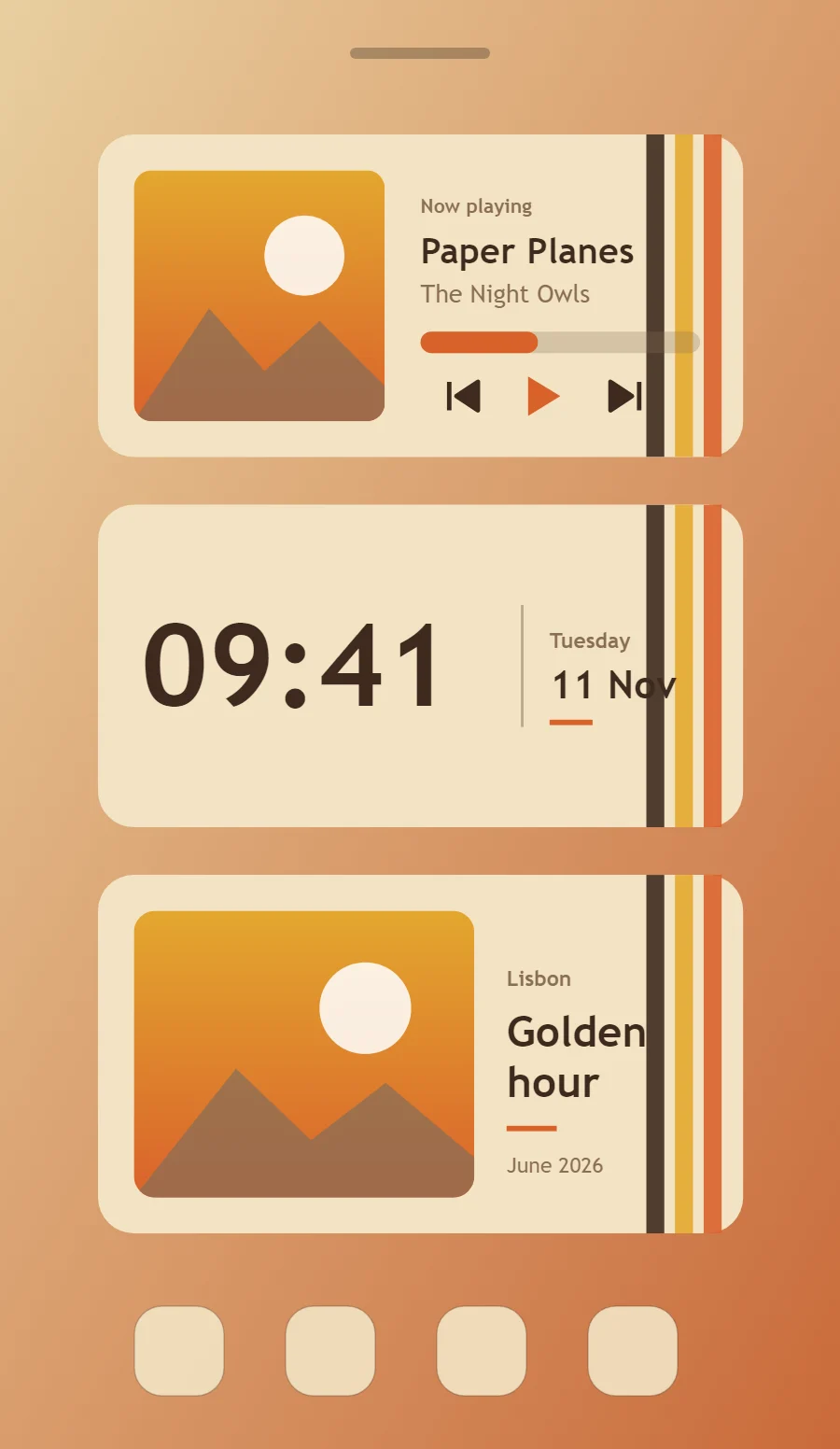
The three retro widgets
- Retro music widget (4 × 2): shows the song that is playing with play, pause and skip controls.
- Retro clock widget (4 × 2): shows the time in large numerals with the day and date beneath.
- Retro photo widget (4 × 2): frames a favorite picture with a short caption.
Place them top to bottom in that order and leave the row above the dock empty so the wallpaper has room.
Music player widget settings
A now-playing widget shows cover art, the track and artist, a progress line and three controls. It works with whichever app is playing, not one particular service.
- Canvas: 360 × 180, background #F3E3C3, corner radius 20
- Image: cover art 140 × 140, radius 10, connected to media artwork
- Text: track title, Pacifico, size 20, color #3E2A1F, one line
- Photos: Add a warm faded tint and a cream border like an old print.
Styling is free; the live data needs Pro. Full recipe and steps.
Clock widget settings
A digital clock is the widget most people place first. It needs to be readable from arm's length, so the time takes most of the space and the date sits quietly below it.
- Canvas: 360 × 180, background #F3E3C3, corner radius 20
- Layout: split: the time on the left at size 64, a thin divider at x 236, and the weekday and date stacked in a column on the right
- Text or Date: weekday, Pacifico, size 12, color #8A6E55
- Numbers: Set numbers thick and brown, with an orange stripe underneath.
Free to build. Full recipe and steps.
Photo widget settings
A photo widget puts a person, place or pet on the home screen without making it the wallpaper. The frame, the crop and the caption decide whether it feels designed or just pasted in.
- Canvas: 360 × 200, background #F3E3C3, corner radius 20
- Layout: photo on the left, caption on the right
- Image: 190 × 160, corner radius 12, crop to fill
- Photos: Add a warm faded tint and a cream border like an old print.
Free to build. Full recipe and steps.
How to set up a retro home screen
- Set the wallpaper first, so you can judge every color against it.
- Build the music widget and add it to the home screen at 4 × 2.
- Duplicate its canvas settings for the clock and photo widgets so the background, radius and outline match exactly.
- Place all three, then adjust margins until the left edges line up.
- Change the icons last, and remove any app you do not use daily from the page.
Retro wallpaper ideas
A warm striped pattern, a sunset or a wood-grain texture.
Retro icons and dock
Rounded icon packs in orange, mustard and brown.
Retro home screen colors
- Cream
#F3E3C3Background - Sand
#E8CF9FSurface and tracks - Chocolate
#3E2A1FText - Walnut
#8A6E55Labels - Burnt orange
#D9622BAccent
Fonts for a retro home screen
Use Pacifico (import the font file), or the built-in Sans at weight 700. Corner radius is 20 on every widget so the shapes match.
Do and avoid
- Use cream instead of white and brown instead of black.
- Stack two or three stripes as decoration.
- Do not use cool blues or greys.
- Do not use thin modern type.