 WidgetCraftGet the app
Pixel art · Calendar · 4 × 2 widget
Pixel art calendar widget
A pixel art calendar widget shows today's date beside your next event. 8-bit game screens: pixel fonts, chunky meters and limited palettes. This page gives the exact colors, type settings and layers, with a preview drawn from the same values.
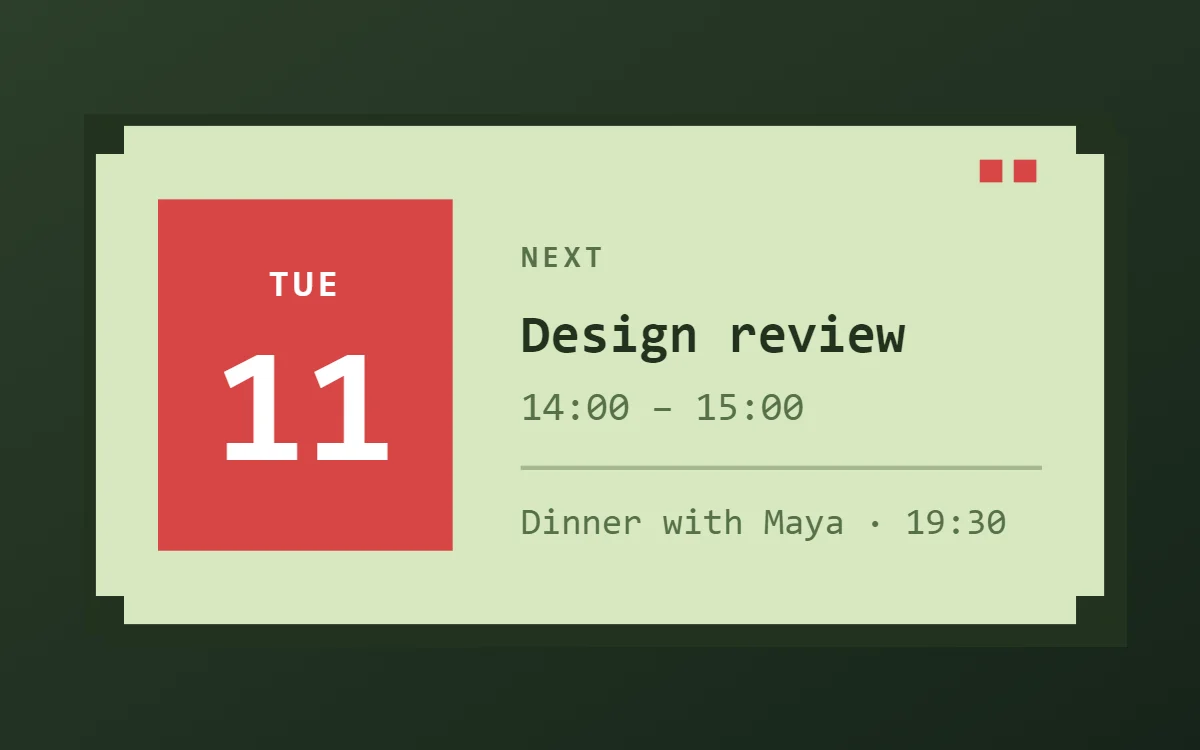
What a pixel art calendar widget shows
A calendar widget answers two questions: what day is it, and what is next. The date sits in a bold block on the left and the next event takes the right side.
The date works with no permission. Showing events needs Android's calendar permission and a calendar connection, which is a Pro feature in WidgetCraft. Without it you can still build the date block on its own for free.
How the pixel art style shapes it
Pixel art widgets look like a handheld game console from the late 1980s. Text uses a pixel font, progress is shown as blocks or hearts, and the palette is a few flat greens or bright arcade colors.
- Numbers: Show numbers like a game score, with a short label such as LV or HP in front.
- Lists: Treat rows as a quest log with a square marker and a short capitalised title.
Pixel art calendar widget recipe
| Layer | Settings |
|---|---|
| Canvas | 360 × 180, background #D8E8C0, corner radius 0, outline 4 pt #22331F, shadow #22331F offset 6/6 with radius 0 |
| Shape | date block 104 × 124, radius 0, fill #D64545 |
| Date | weekday (size 13) and day number (size 58) centered on the block, color #FFFFFF |
| Text | label "Next", size 11, color #55704A |
| List or Text | next event title, Press Start 2P, size 19, color #22331F; time at size 14 in #55704A |
| Shape | divider 1.5 pt in #55704A at 40% opacity |
| Ornament | four 12 × 12 dark squares in the corners for a notched pixel frame, and two small red squares as status lights |
| Font | Press Start 2P (import the font file), or the built-in Mono |
| Home screen size | 4 × 2 cells |
Pixel art color palette
- Screen green
#D8E8C0Background - Mid green
#B8CFA0Surface and tracks - Dark pixel
#22331FText - Moss
#55704ALabels - Heart red
#D64545Accent
How to make a pixel art calendar widget in WidgetCraft
- Create a widget and open Canvas. Set the size to 360 × 180, the background to #D8E8C0 and the corner radius to 0. Add a 4-point outline.
- Add a Shape on the left, 104 × 124 with radius 0, filled with #D64545.
- Add two Date layers over it: the short weekday at size 13 and the day number at size 58, both in #FFFFFF.
- Add a Text label "Next" at size 11 in #55704A.
- Add a List layer, open Data and choose your calendar. Set the title to size 19 in #22331F and the time to size 14 in #55704A.
- Add the pixel art ornament with Shape layers and move them below the other layers in Layers: four 12 × 12 dark squares in the corners for a notched pixel frame, and two small red squares as status lights.
- Tap Save, then Add to home screen and resize the widget on your launcher if needed.
The layout and styling are free. The live data connection for this widget needs WidgetCraft Pro, a one-time purchase.
Tips for pixel art calendar widgets
- Import Press Start 2P or Silkscreen for authentic pixel type.
- Keep every edge square and every color flat.
- Event titles vary in length, so give the title a single line and let it truncate.
- Show one or two events at most in a 4 × 2 widget.
- If no events appear, check that the calendar you chose is the one your events are saved in.
- Do not use smooth gradients or rounded corners.
- Do not use more than four colors in one widget.
Ready-made Retro Pixel templates
WidgetCraft includes a Retro Pixel template pack you can import and edit instead of starting from a blank canvas.

Questions about the pixel art calendar widget
What size is a pixel art calendar widget?
It is designed for 4 × 2 home screen cells on a 360 × 180 canvas. You can resize it on the launcher and the design scales in proportion.
Which colors does it use?
Screen green (#D8E8C0) for the background, Dark pixel (#22331F) for the main text, Moss (#55704A) for labels and Heart red (#D64545) as the accent.
Is it free to make?
The pixel art design is free to build. Showing live events needs the one-time Pro upgrade.
What else is this style called?
People also search for 8-bit calendar widget, retro pixel calendar widget, pixel calendar widget, game style calendar widget. They describe the same look as this pixel art calendar widget.
More pixel art widgets
- Pixel art clock widget
- Pixel art analog clock widget
- Pixel art battery widget
- Pixel art countdown widget
- Pixel art to-do list widget
- Pixel art photo widget
- Pixel art quote widget
- Pixel art music widget
- Pixel art year progress widget
- Pixel art step counter widget
- Pixel art habit tracker widget
- Pixel art sticky note widget
- Pixel art world clock widget
- Pixel art date widget
- Pixel art home screen setup
- All pixel art widgets