 WidgetCraftGet the app
Pixel art · Date · 2 × 2 widget
Pixel art date widget
A pixel art date widget shows the weekday, a large day number and the month. 8-bit game screens: pixel fonts, chunky meters and limited palettes. This page gives the exact colors, type settings and layers, with a preview drawn from the same values.
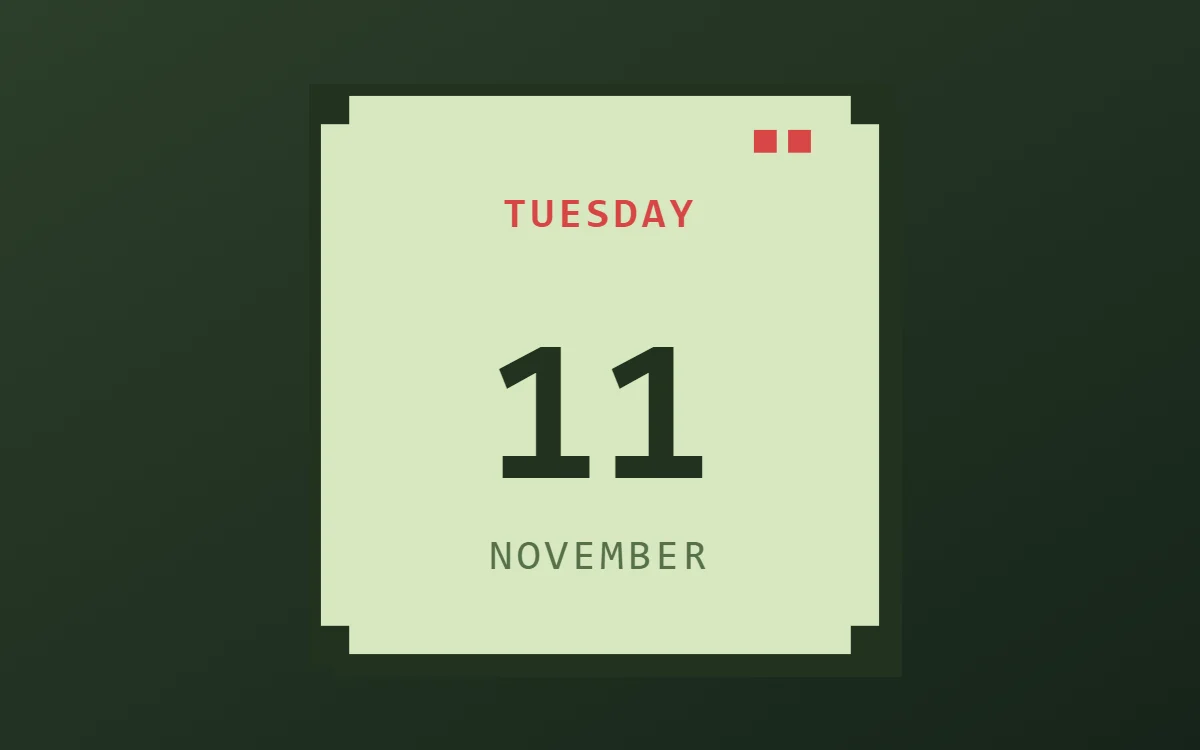
What a pixel art date widget shows
A date widget is the calm alternative to a clock: one large number for the day, with the weekday above and the month below. It suits small 2 × 2 spaces and pairs well with a clock elsewhere on the screen.
It uses the phone's date, so it is free, works offline and needs no permission. WidgetCraft's Date layer takes a pattern, so each line can show a different part of the date.
How the pixel art style shapes it
Pixel art widgets look like a handheld game console from the late 1980s. Text uses a pixel font, progress is shown as blocks or hearts, and the palette is a few flat greens or bright arcade colors.
- Numbers: Show numbers like a game score, with a short label such as LV or HP in front.
- Text: Use a pixel font in capitals and keep words short; pixel fonts are wide.
Pixel art date widget recipe
| Layer | Settings |
|---|---|
| Canvas | 200 × 200, background #D8E8C0, corner radius 0, outline 4 pt #22331F, shadow #22331F offset 6/6 with radius 0 |
| Date | weekday (pattern EEEE), size 15, color #D64545, centered |
| Date | day number (pattern d), Press Start 2P, weight 700, size 72, color #22331F |
| Date | month (pattern MMMM), size 15, color #55704A |
| Ornament | four 12 × 12 dark squares in the corners for a notched pixel frame, and two small red squares as status lights |
| Font | Press Start 2P (import the font file), or the built-in Mono |
| Home screen size | 2 × 2 cells |
Pixel art color palette
- Screen green
#D8E8C0Background - Mid green
#B8CFA0Surface and tracks - Dark pixel
#22331FText - Moss
#55704ALabels - Heart red
#D64545Accent
How to make a pixel art date widget in WidgetCraft
- Create a widget and open Canvas. Set the size to 200 × 200, the background to #D8E8C0 and the corner radius to 0. Add a 4-point outline.
- Tap Add and choose Date. Set the pattern to the full weekday (EEEE), the size to 15 and the color to #D64545.
- Add a second Date layer with the day number (pattern d) at size 72 in #22331F, using Press Start 2P.
- Add a third Date layer with the full month (MMMM) at size 15 in #55704A, in capitals.
- Center all three layers on the canvas.
- Add the pixel art ornament with Shape layers and move them below the other layers in Layers: four 12 × 12 dark squares in the corners for a notched pixel frame, and two small red squares as status lights.
- Tap Save, then Add to home screen and resize the widget on your launcher if needed.
Everything in this recipe works in the free version.
Tips for pixel art date widgets
- Import Press Start 2P or Silkscreen for authentic pixel type.
- Keep every edge square and every color flat.
- Make the day number at least twice the size of the other lines.
- Write the month in full if there is room; short forms such as "Nov" look cramped in serif fonts.
- Pair it with a clock widget in the same font rather than squeezing the time into the same 2 × 2 space.
- Do not use smooth gradients or rounded corners.
- Do not use more than four colors in one widget.
Ready-made Retro Pixel templates
WidgetCraft includes a Retro Pixel template pack you can import and edit instead of starting from a blank canvas.

Questions about the pixel art date widget
What size is a pixel art date widget?
It is designed for 2 × 2 home screen cells on a 200 × 200 canvas. You can resize it on the launcher and the design scales in proportion.
Which colors does it use?
Screen green (#D8E8C0) for the background, Dark pixel (#22331F) for the main text, Moss (#55704A) for labels and Heart red (#D64545) as the accent.
Is it free to make?
Yes. Date widgets use free features in WidgetCraft, and the pixel art styling is free too.
What else is this style called?
People also search for 8-bit date widget, retro pixel date widget, pixel date widget, game style date widget. They describe the same look as this pixel art date widget.
More pixel art widgets
- Pixel art clock widget
- Pixel art analog clock widget
- Pixel art calendar widget
- Pixel art battery widget
- Pixel art countdown widget
- Pixel art to-do list widget
- Pixel art photo widget
- Pixel art quote widget
- Pixel art music widget
- Pixel art year progress widget
- Pixel art step counter widget
- Pixel art habit tracker widget
- Pixel art sticky note widget
- Pixel art world clock widget
- Pixel art home screen setup
- All pixel art widgets