 WidgetCraftGet the app
E-ink · Countdown · 4 × 2 widget
E-ink countdown widget
An e-ink countdown widget counts the days left until a date you choose. Grey paper-like screens with crisp black text and no color. This page gives the exact colors, type settings and layers, with a preview drawn from the same values.
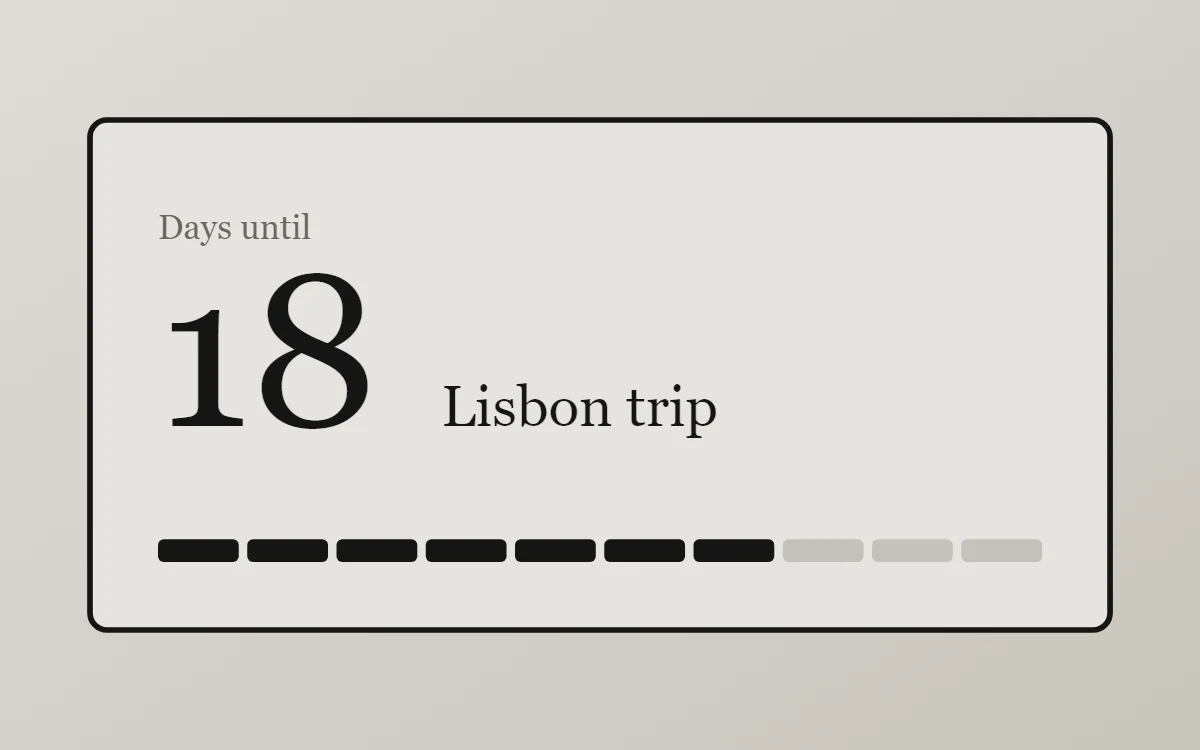
What an e-ink countdown widget shows
A countdown widget keeps one date in view: a trip, a birthday, an exam or a launch. The number of days is the hero, the event name gives it meaning and a bar shows how far along you are.
WidgetCraft's countdown layer works from the phone's clock, so it is free, needs no permission and works offline. You pick the target date in the layer's details.
How the e-ink style shapes it
E-ink widgets imitate an e-reader display: a light grey background, sharp black text, no color and no effects. Popular for low-distraction home screens.
- Numbers: Keep numbers black and plain; add a small label.
- Bars and rings: Use black segments or a simple outlined bar.
E-ink countdown widget recipe
| Layer | Settings |
|---|---|
| Canvas | 360 × 180, background #E6E4DF, corner radius 6, outline 2 pt #151515 |
| Layout | stacked: label, number and event name, left aligned |
| Text | label "Days until", size 12, color #6A6862 |
| Countdown | days remaining, built-in Serif, size 76, color #151515 |
| Text | event name, size 20, color #151515 |
| Progress | ten short segments, 312 wide, progress #151515 |
| Font | built-in Serif |
| Home screen size | 4 × 2 cells |
E-ink color palette
- Paper grey
#E6E4DFBackground - Shade
#D7D4CESurface and tracks - Ink
#151515Text - Pencil
#6A6862Labels - Ink
#151515Accent
How to make an e-ink countdown widget in WidgetCraft
- Create a widget and open Canvas. Set the size to 360 × 180, the background to #E6E4DF and the corner radius to 6. Add a 2-point outline.
- Tap Add and choose Countdown. Pick your target date and show days only.
- Set the font to built-in Serif, the size to 76 and the color to #151515.
- Add a Text label "Days until" at size 12 in #6A6862, and a second Text layer for the event name at size 20.
- Add a Progress layer as ten short segments in #151515 to show how much of the wait has passed.
- Tap Save, then Add to home screen and resize the widget on your launcher if needed.
Everything in this recipe works in the free version.
Tips for e-ink countdown widgets
- Use only black and two greys.
- Add a thin black outline.
- Decide whether today counts; label the number "days left" or "sleeps" so it is not ambiguous.
- Short event names fit best. Two or three words is ideal.
- After the date passes, change the target or the widget will sit at zero.
- Do not use color or gradients.
- Do not use shadows.
Questions about the e-ink countdown widget
What size is an e-ink countdown widget?
It is designed for 4 × 2 home screen cells on a 360 × 180 canvas. You can resize it on the launcher and the design scales in proportion.
Which colors does it use?
Paper grey (#E6E4DF) for the background, Ink (#151515) for the main text, Pencil (#6A6862) for labels and Ink (#151515) as the accent.
Is it free to make?
Yes. Countdown widgets use free features in WidgetCraft, and the e-ink styling is free too.
What else is this style called?
People also search for e-reader style countdown widget, paper display countdown widget, low distraction countdown widget. They describe the same look as this e-ink countdown widget.
More e-ink widgets
- E-ink clock widget
- E-ink analog clock widget
- E-ink calendar widget
- E-ink battery widget
- E-ink to-do list widget
- E-ink photo widget
- E-ink quote widget
- E-ink music widget
- E-ink year progress widget
- E-ink step counter widget
- E-ink habit tracker widget
- E-ink sticky note widget
- E-ink world clock widget
- E-ink date widget
- E-ink home screen setup
- All e-ink widgets