 WidgetCraftGet the app
E-ink · Year progress · 4 × 2 widget
E-ink year progress widget
An e-ink year progress widget shows how much of the year has passed as a percentage and a bar. Grey paper-like screens with crisp black text and no color. This page gives the exact colors, type settings and layers, with a preview drawn from the same values.
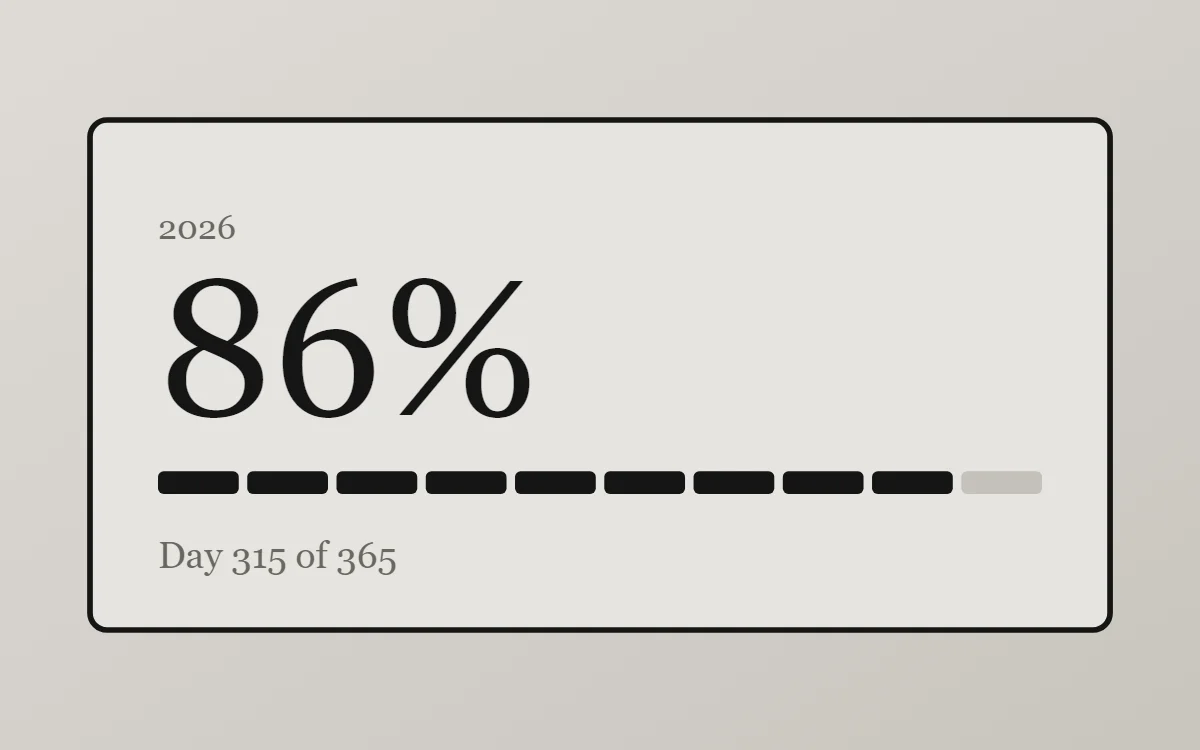
What an e-ink year progress widget shows
A year-progress widget is a gentle nudge: one bar that fills from 1 January to 31 December. The same layout works for the day, the week or a personal goal.
It is calculated from the date, so it is free, offline and needs no permission. WidgetCraft includes a free Day progress component, and a formula can stretch it to the year.
How the e-ink style shapes it
E-ink widgets imitate an e-reader display: a light grey background, sharp black text, no color and no effects. Popular for low-distraction home screens.
- Bars and rings: Use black segments or a simple outlined bar.
- Numbers: Keep numbers black and plain; add a small label.
E-ink year progress widget recipe
| Layer | Settings |
|---|---|
| Canvas | 360 × 180, background #E6E4DF, corner radius 6, outline 2 pt #151515 |
| Text | year label, size 12, color #6A6862 |
| Text (formula) | percentage of the year, built-in Serif, size 68, color #151515 |
| Progress | ten short segments, 312 wide, progress #151515, range 0 to 365 |
| Text | "Day 315 of 365", size 13, color #6A6862 |
| Font | built-in Serif |
| Home screen size | 4 × 2 cells |
E-ink color palette
- Paper grey
#E6E4DFBackground - Shade
#D7D4CESurface and tracks - Ink
#151515Text - Pencil
#6A6862Labels - Ink
#151515Accent
How to make an e-ink year progress widget in WidgetCraft
- Create a widget and open Canvas. Set the size to 360 × 180, the background to #E6E4DF and the corner radius to 6. Add a 2-point outline.
- Tap Add and choose Progress. Make it 312 wide, styled as ten short segments.
- Open Data and connect it to the day of the year with a range of 0 to 365.
- Color the progress #151515 and keep the track faint.
- Add a Text layer for the percentage at size 68 in #151515, and a smaller one for the day count at size 13 in #6A6862.
- Tap Save, then Add to home screen and resize the widget on your launcher if needed.
Everything in this recipe works in the free version.
Tips for e-ink year progress widgets
- Use only black and two greys.
- Add a thin black outline.
- Show both the percentage and the day count so the bar has context.
- Use a segmented bar if you want each step to feel like a milestone.
- For a goal of your own, connect the bar to a counter instead of the date.
- Do not use color or gradients.
- Do not use shadows.
Questions about the e-ink year progress widget
What size is an e-ink year progress widget?
It is designed for 4 × 2 home screen cells on a 360 × 180 canvas. You can resize it on the launcher and the design scales in proportion.
Which colors does it use?
Paper grey (#E6E4DF) for the background, Ink (#151515) for the main text, Pencil (#6A6862) for labels and Ink (#151515) as the accent.
Is it free to make?
Yes. Year progress widgets use free features in WidgetCraft, and the e-ink styling is free too.
What else is this style called?
People also search for e-reader style year progress widget, paper display year progress widget, low distraction year progress widget. They describe the same look as this e-ink year progress widget.
More e-ink widgets
- E-ink clock widget
- E-ink analog clock widget
- E-ink calendar widget
- E-ink battery widget
- E-ink countdown widget
- E-ink to-do list widget
- E-ink photo widget
- E-ink quote widget
- E-ink music widget
- E-ink step counter widget
- E-ink habit tracker widget
- E-ink sticky note widget
- E-ink world clock widget
- E-ink date widget
- E-ink home screen setup
- All e-ink widgets