 WidgetCraftGet the app
Line art · Home screen setup
Line art home screen setup
Line art widgets are transparent with a thin outline, so the wallpaper shows through. Rings, bars and frames are single strokes, which looks light and elegant on photo wallpapers. This setup uses three widgets, one wallpaper and one palette so the whole screen reads as a single design.
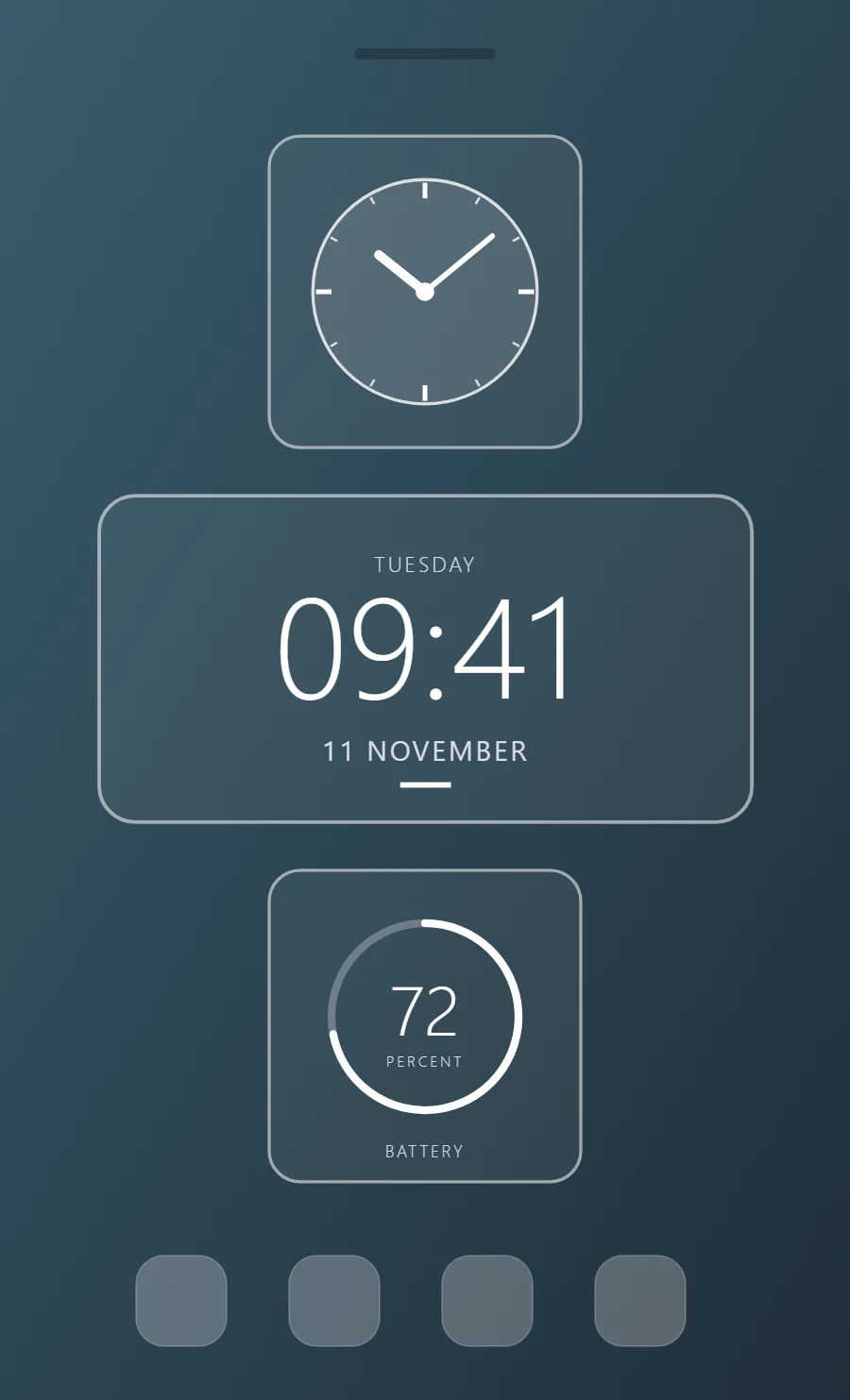
The three line art widgets
- Line art analog clock widget (2 × 2): shows the time on a round dial with hour and minute hands.
- Line art clock widget (4 × 2): shows the time in large numerals with the day and date beneath.
- Line art battery widget (2 × 2): shows your charge level as a ring with the percentage in the middle.
Place them top to bottom in that order and leave the row above the dock empty so the wallpaper has room.
Analog clock widget settings
An analog clock reads as a shape rather than as numbers, which makes it the most decorative way to show the time. WidgetCraft has a dedicated analog layer where the dial, markers and each hand can be styled separately.
- Canvas: 200 × 200, background white at 6% opacity, corner radius 20, outline 2 pt white at 55% opacity
- Analog: dial white at 12% opacity, ring 2 pt in #FFFFFF
- Markers: 12 ticks, quarter-hours in #FFFFFF (3 pt), others in #D8DEE9 (1.5 pt)
- Bars and rings: Draw rings and bars as 2 point strokes; show progress with a brighter stroke.
Free to build. Full recipe and steps.
Clock widget settings
A digital clock is the widget most people place first. It needs to be readable from arm's length, so the time takes most of the space and the date sits quietly below it.
- Canvas: 360 × 180, background white at 6% opacity, corner radius 20, outline 2 pt white at 55% opacity
- Layout: stacked: weekday, time, then date, all center aligned
- Text or Date: weekday, built-in Sans, size 12, color #D8DEE9, capitals, letter spacing 0.1
- Numbers: Use a thin weight for numbers so they match the strokes.
Free to build. Full recipe and steps.
Battery widget settings
A battery widget turns one number into a shape you can read without thinking. A ring that fills clockwise is the clearest form, with the percentage inside it.
- Canvas: 200 × 200, background white at 6% opacity, corner radius 20, outline 2 pt white at 55% opacity
- Ring: diameter 120, stroke 5, track white at 28% opacity, progress #FFFFFF, round ends, start at top
- Battery: level as a number, built-in Sans, size 44, color #FFFFFF, centered in the ring
- Bars and rings: Draw rings and bars as 2 point strokes; show progress with a brighter stroke.
Free to build. Full recipe and steps.
How to set up a line art home screen
- Set the wallpaper first, so you can judge every color against it.
- Build the analog clock widget and add it to the home screen at 2 × 2.
- Duplicate its canvas settings for the clock and battery widgets so the background, radius and outline match exactly.
- Place all three, then adjust margins until the left edges line up.
- Change the icons last, and remove any app you do not use daily from the page.
Line art wallpaper ideas
A dark or evenly toned photo with open areas.
Line art icons and dock
Outline icon packs in white.
Line art home screen colors
- Clear
#FFFFFFBackground - Clear
#FFFFFFSurface and tracks - White
#FFFFFFText - Mist
#D8DEE9Labels - White
#FFFFFFAccent
Fonts for a line art home screen
Use built-in Sans at weight 300, with labels in capitals. Corner radius is 20 on every widget so the shapes match.
Do and avoid
- Set the fill fully transparent and the outline to 1.5 to 2 points.
- Match stroke width across every layer.
- Do not use bold fonts.
- Do not use it on busy wallpapers; the lines get lost.