 WidgetCraftGet the app
Guide
How to add a widget to your Android home screen
Touch and hold an empty part of the home screen, tap Widgets, find the app, then drag the widget where you want it.
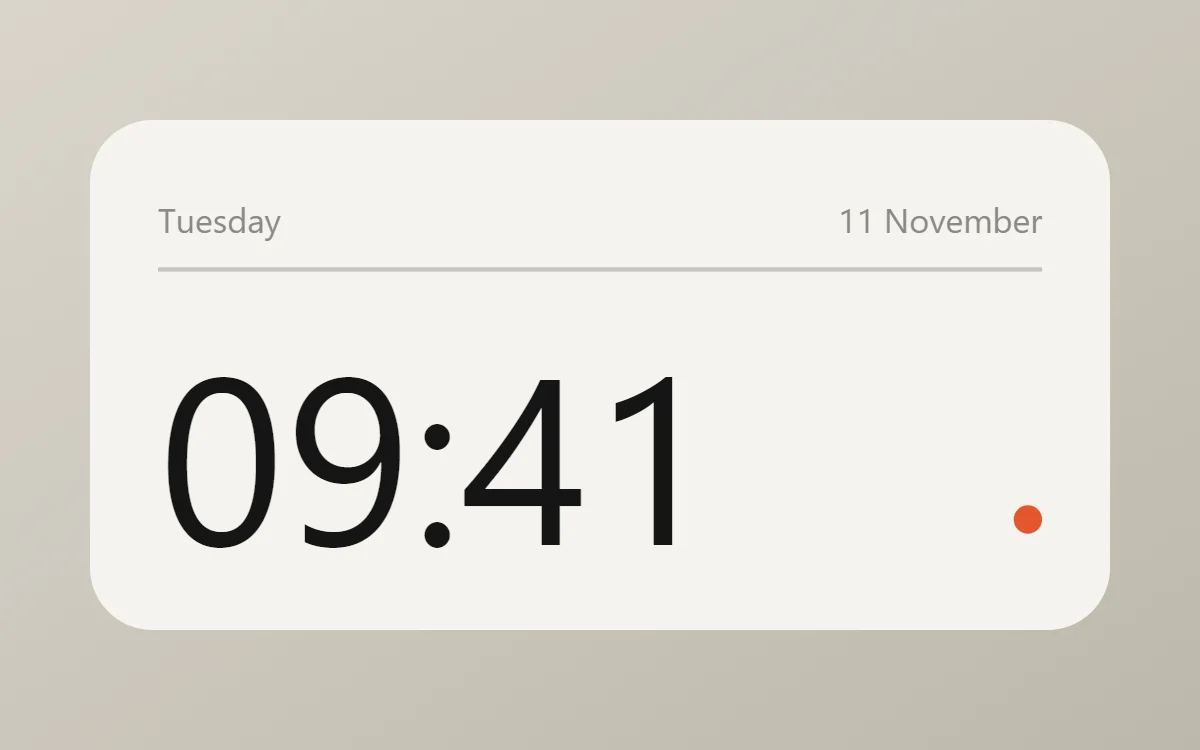
The steps on most phones
- Touch and hold an empty area of the home screen until a menu appears.
- Tap Widgets.
- Scroll to the app, or use the search box at the top of the list.
- Touch and hold the widget you want, drag it onto a home screen page and let go.
Some widgets open a setup screen before they appear. WidgetCraft, for example, asks which of your saved designs the new widget should show. You can add the same app's widget several times and choose a different design for each.
Samsung Galaxy (One UI)
Touch and hold the home screen, then tap Widgets at the bottom. Samsung groups widgets by app: tap the app name to open its list, choose a widget and tap Add. It lands on the current page and you can drag it from there.
One UI also supports stacks. Drag one widget on top of another of the same size and you can swipe between them, which is useful when space is short.
Google Pixel
Touch and hold the home screen and choose Widgets. Pixel shows suggested widgets first; scroll down for the alphabetical list of apps, or search. Touch and hold a widget in the list and the list slides away so you can drop it on a page.
Xiaomi, Redmi and POCO (HyperOS and MIUI)
Pinch the home screen with two fingers, or touch and hold it, then tap Widgets. Xiaomi shows its own widgets first. Third-party apps such as WidgetCraft are under Android widgets further down the page.
Xiaomi phones sometimes block an app from placing a widget for you. If a request from the app does nothing, open the app's info page in Settings, go to Other permissions and allow Home screen shortcuts.
Adding straight from the app
Many apps can ask the launcher to place a widget. In WidgetCraft, open a design and tap Add to home screen; most launchers show a small confirmation and place it on the first page with room. If your launcher ignores the request, add it from the Widgets list as described above.
If the app is missing from the Widgets list
- Open the app once after installing it. Some launchers only list widgets from apps that have been opened.
- Check that the app is installed on the phone's internal storage, not an SD card.
- Restart the launcher or the phone, then look again.
- Make sure there is free space on the page. A 4 × 2 widget needs four free columns and two free rows.
Questions
Can I put widgets on the lock screen?
It depends on the phone. Some recent Android versions and some manufacturers allow lock screen widgets; many phones only allow them on the home screen.
How many widgets can I add?
As many as fit. Each page has a fixed grid, and you can add more pages by dragging a widget to the edge of the screen.
Do widgets slow the phone down?
A handful of ordinary widgets has no noticeable effect. Widgets that load web data very often use more power.