 WidgetCraftGet the app
Guide
How to make your own Android widget without coding
Install a widget maker, start from a blank canvas or a template, add layers such as a clock or a photo, style them and add the result to your home screen.
What you need
An Android phone running version 8 or later and a widget maker app. This guide uses WidgetCraft, which is free to start with. No coding is involved: you build the widget by stacking layers, the way you would in a simple design app.
Step by step
- Open WidgetCraft and tap Create widget, or choose a template if you would rather adapt something finished.
- Open Canvas and pick a size. Use 360 × 180 for a wide 4 × 2 widget or 200 × 200 for a square one. Set the background color and corner radius.
- Tap Add and choose an element. There are text, clock, date, battery, shape, ring, progress, image, counter, countdown, list and analog clock elements.
- Select the layer and use Style for color, font and size, and Layout for position. The preview at the top updates as you drag.
- Repeat for each part of the design. Use Layers to reorder or hide them.
- Tap Save, then Add to home screen.
Elements and components
An element is a plain building block with no data attached: a line of text, a rectangle, a ring. A component is one or more elements already connected to data, such as a battery dial or a digital clock. Components are the quickest way to get something working; elements give you full control.
Making it live
Any layer can be connected to data from the Data tab. A ring can follow the battery level, a text layer can show the date in the format you choose and a progress bar can follow a counter you tap. Time, date, battery and local tasks are free. Calendar, music, fitness and web data need the Pro upgrade.
A first project to try
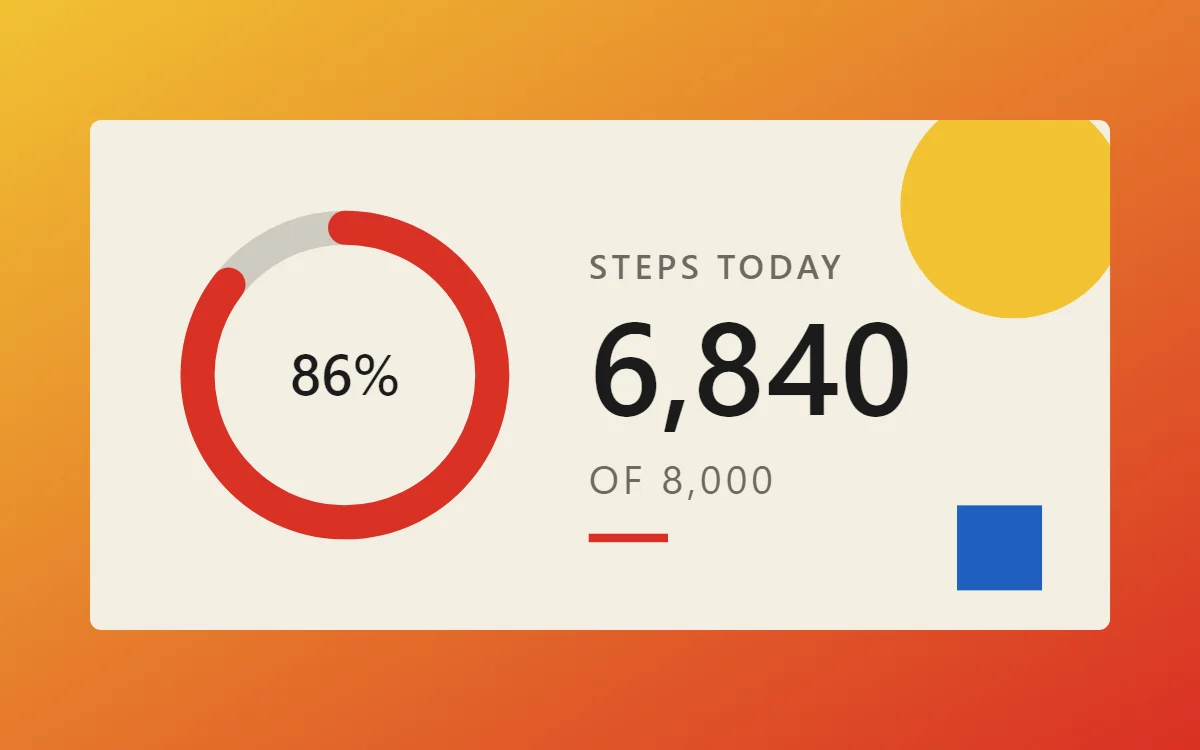
Build a battery ring: add a Ring, connect it to battery level with a range of 0 to 100, put a Battery number in the middle and color the ring to match your wallpaper. It takes about three minutes and teaches the three ideas you need: adding a layer, styling it and connecting it to data.
Questions
Is it free?
The editor and basic data are free, with up to ten saved widgets and ads in the app. Pro is a one-time purchase.
Can I undo mistakes?
Yes. The editor has undo and redo, and it keeps a draft if you leave before saving.
Can I start from someone else's design?
Yes. Import a template and edit any layer.