 WidgetCraftGet the app
Guide
How to make a transparent widget on Android
Set the widget background to a color with low opacity, or to fully transparent, and use white or black text that contrasts with your wallpaper.
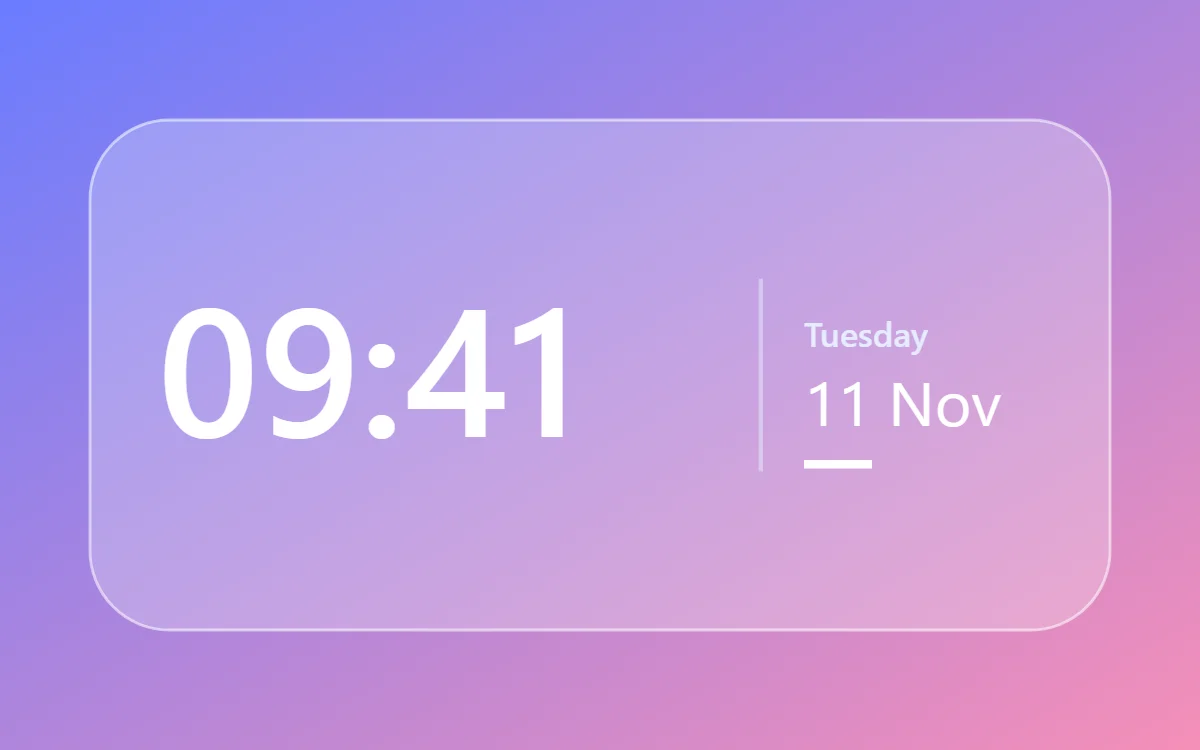
Steps in WidgetCraft
- Open the widget and tap Canvas.
- Open the background color. Use the transparency control to lower the opacity until the wallpaper shows through.
- For a glass look, choose white and set it to between 20 and 30% opacity. For a fully clear widget, set it to 0%.
- Add an outline 1 point wide in white at about 40 to 55% opacity. This thin edge is what makes the panel look like glass rather than a faded box.
- Set every text layer to solid white or solid black, whichever contrasts with the wallpaper behind it.
- Save and add the widget to your home screen, then check it against the real wallpaper.
Opacity values that work
| Look | Background | Outline | Text |
|---|---|---|---|
| Fully clear | Any color at 0% | None | White or black, bold |
| Frosted glass | White #FFFFFF at 20 to 30% | White at 40 to 55%, 1 pt | White |
| Dark glass | Black #000000 at 30 to 45% | White at 15 to 25%, 1 pt | White |
| Outline only | 0 to 6% | White at 80%, 2 pt | White, light weight |
Why there is no real blur
Android does not let a home screen widget blur what is behind it. Widgets are drawn by the launcher from a fixed set of simple views, and none of them can read the wallpaper. Apps that show frosted glass are using a translucent fill, or an image that was blurred in advance.
The practical answer is to choose a wallpaper that is already soft: a gradient, an out-of-focus photo or a photo with a calm area where the widget will sit. The translucent panel then reads as glass.
Keeping text readable
- Light or busy wallpaper: use dark glass (black at 30 to 45%) with white text. The dark panel calms the picture behind the words.
- Dark wallpaper: frosted or fully clear works, with white text.
- Mixed wallpaper: raise the panel opacity until the text is readable over both the lightest and the darkest area.
- Use medium or bold weights. Thin text disappears over photos.
- Add a soft shadow to text only if the widget is fully clear; on a panel it looks dirty.
Common problems
- The widget shows a grey or black box. The background is not actually transparent. Check the canvas background, not just the layer on top of it.
- Corners look cut off. Android 12 and later round widget corners. Match your radius to about 24 to 28, or keep the canvas clear and round an inner shape.
- It looked fine in the editor but not on the home screen. The editor shows a neutral backdrop. Always judge transparency against your real wallpaper.
Questions
Can widgets be fully transparent on Android?
Yes. A widget background can be 0% opaque so only its text and shapes show.
Do transparent widgets work on Samsung, Pixel and Xiaomi phones?
Yes. Transparency is part of the widget, so it works on any launcher. Some launchers add their own padding around widgets.
Is the glass look free in WidgetCraft?
Yes. Transparency, outlines and colors are all free features.
Related
- Glass widgets: palette and recipes
- Line art (outline) widgets
- Glass home screen setup
- Match widgets to your wallpaper