 WidgetCraftGet the app
Guide
How to import and edit a widget template in WidgetCraft
Open the template library, choose a style, import a template, then edit any layer like your own design.
Find a template
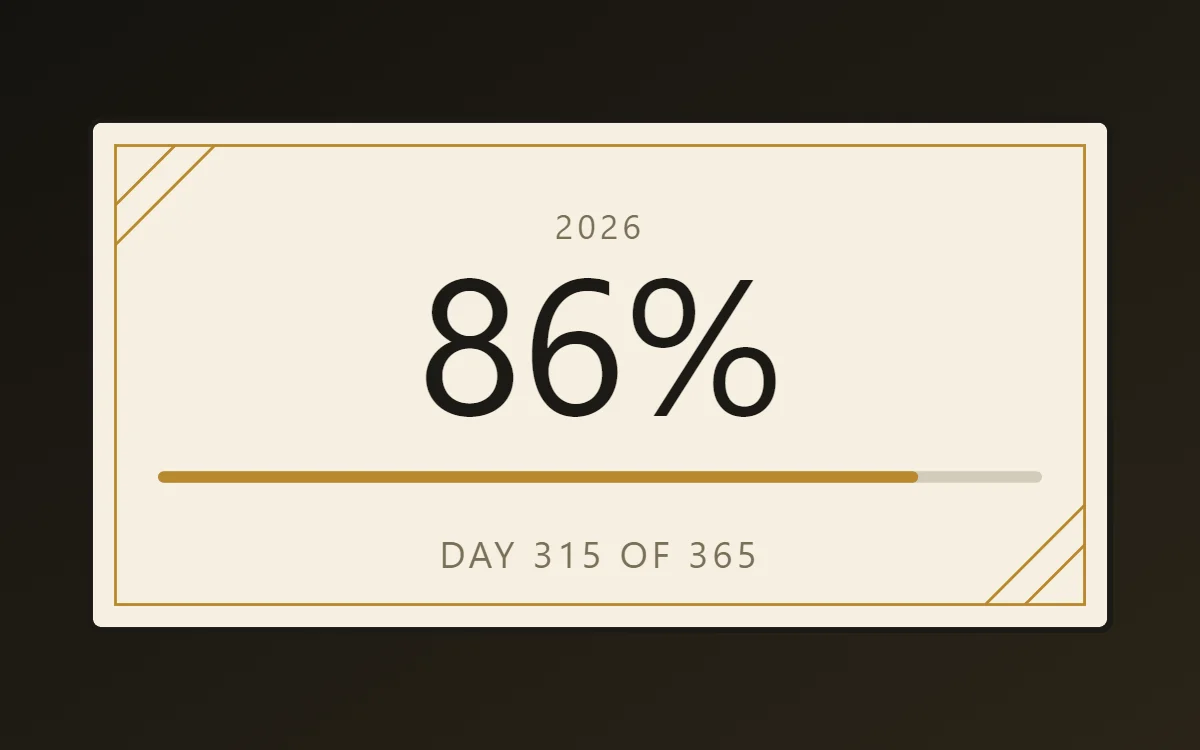
Templates are grouped by style, including Minimalist, Brutalist, Editorial, Bauhaus, Retro Pixel, Art Deco, Soft Pastel and Studio originals. Each one shows a preview with example values so you can see the finished result. New styles are added to the library without an app update.
Import it
- Open the template library and choose a style.
- Tap the template's import button. In the free version this plays one rewarded ad; with Pro it imports straight away.
- The template is added to your Gallery and opens in the editor.
An import is permanent on that phone. You will not see another ad for the same template.
Make it yours
An imported template is an ordinary widget. Open Layers to see every part, then:
- Change colors to match your wallpaper.
- Replace the photo with your own.
- Edit the text and the date or time format.
- Delete layers you do not need, or add new ones.
Example values such as the sample time are only for the preview. On your home screen the widget shows your own time, battery level and data.
Templates that need a connection
Some templates use calendar, music or fitness data. Their names say so. They ask for the relevant permission when you set them up, and those connections are part of Pro.
Offline and storage
Imported templates are saved on your phone and keep working without the internet. Free users can keep up to ten widgets in the Gallery, counting both your own designs and imports.
Questions
Can I undo changes to a template?
Yes, with undo while editing. You can also import the template again for a fresh copy.
Do templates update automatically?
No. Your copy is yours and stays as you left it.