 WidgetCraftGet the app
Guide
Why your Android widget is not updating, and how to fix it
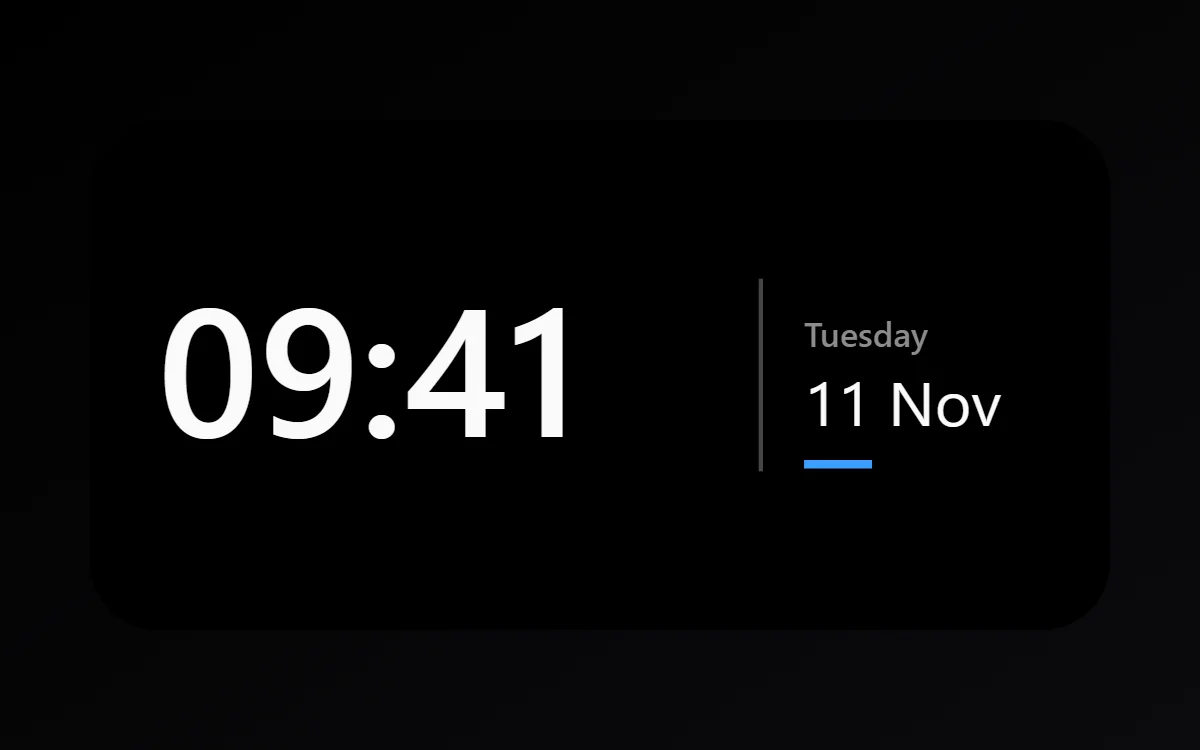
Battery saving has usually stopped the app in the background. Allow the app to run without battery restrictions, then remove and re-add the widget.
Fixes to try, in order
- Open the app once, then go back to the home screen and check the widget.
- Open Settings → Apps, choose the app, tap Battery and select Unrestricted (or turn off battery optimisation).
- Turn off the phone's battery saver and check again.
- Remove the widget and add it again.
- Restart the phone.
- Update the app and the launcher from Google Play.
Extra steps by brand
- Xiaomi, Redmi, POCO: in the app's info page, turn on Autostart and set Battery saver to No restrictions.
- Samsung: go to Settings → Battery → Background usage limits and remove the app from Sleeping apps and Deep sleeping apps.
- OnePlus, Oppo, Realme, Vivo: allow Auto-launch and background activity for the app.
- Pixel: setting battery use to Unrestricted is normally enough.
What is normal
Android limits how often widgets refresh so they do not drain the battery. A clock updates every minute. Other data typically updates every 15 to 30 minutes, or when something changes, such as plugging in the charger. Seconds, live animation and instant updates are not possible in ordinary widgets, so a widget that is a few minutes behind is working as designed.
Data that needs permission
Calendar, music and fitness values rely on permissions. If a permission was removed, or the phone revoked it because the app was unused, the widget shows its fallback text. Open the app, reconnect the source and the widget recovers.
After a restart or update
Widgets reload when the phone starts. If one stays blank after a restart, open its app once. After a system update, a launcher sometimes drops widgets entirely; adding them again is the only fix.
Questions
Why does my clock widget show the wrong time?
The app was stopped in the background. Remove battery restrictions for it.
Why is the widget blank?
The launcher has not received its content yet. Open the app, or remove and re-add the widget.
Does removing a widget delete my design?
Not in WidgetCraft. Your designs stay in the app's Gallery.