 WidgetCraftGet the app
Guide
How to edit or remove a widget on Android
Touch and hold the widget. Drag it to Remove, or tap Remove, to take it off the home screen. To change it, look for a settings or pencil option in the same menu, or edit the design in the app that made it.
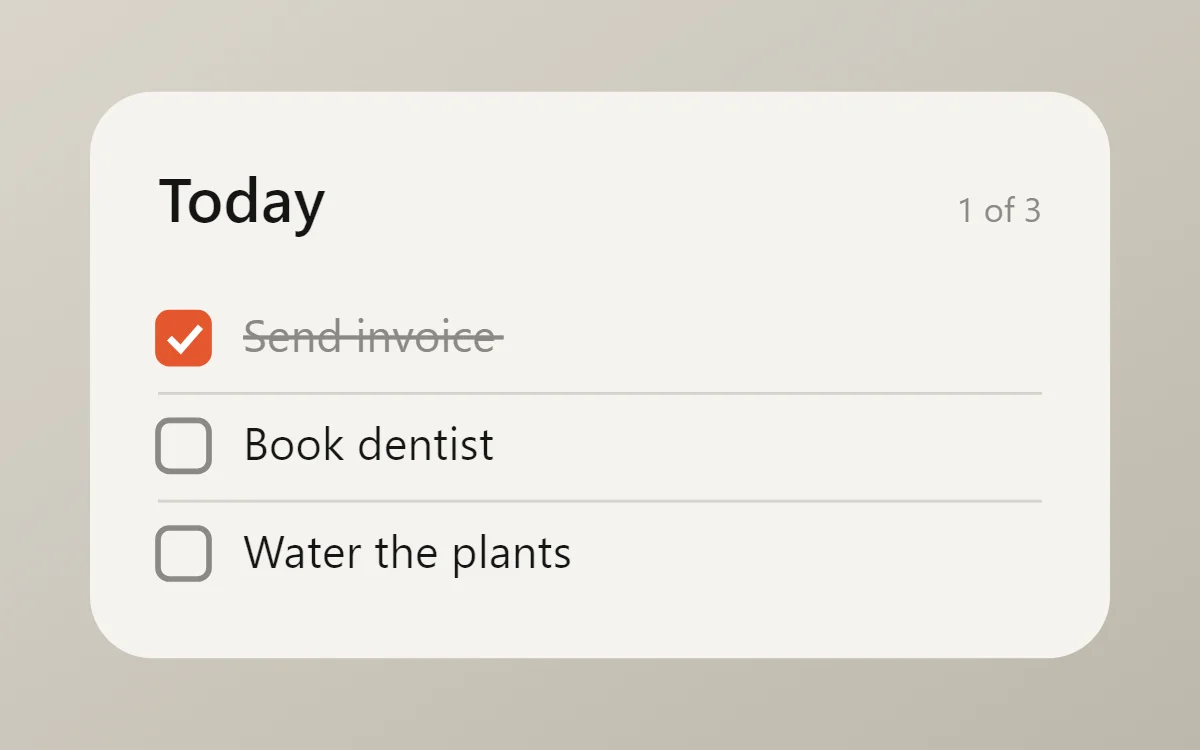
Remove a widget
- Touch and hold the widget until it lifts or a menu appears.
- On Pixel and most phones, drag it to Remove at the top of the screen. On Samsung phones, tap Remove in the menu.
Removing a widget does not uninstall the app or delete its data. In WidgetCraft, the design stays in your Gallery so you can add it again later.
Change a widget's settings
On Android 12 and later, many widgets can be reconfigured in place: touch and hold the widget and tap the pencil or Widget settings. What you can change depends on the app. Older widgets have no settings once placed; remove and add them again to choose new options.
Edit a WidgetCraft widget
- Open WidgetCraft and choose the design in your Gallery.
- Change any layer: text, colors, fonts, sizes or data.
- Tap Save. The widget on your home screen updates with the new design, so there is no need to add it again.
Move a widget
Touch and hold, then drag the widget to a new place, or to the edge of the screen to move it to another page. Other icons shift to make room.
Questions
I removed a widget by mistake. Can I undo it?
Some launchers show an Undo button for a few seconds. Otherwise add it again from the widget list.
Why does my edited widget look the same?
Give it a moment to refresh. If it still has not changed, see why widgets stop updating.
Does removing a widget delete my design?
No. WidgetCraft designs stay in the Gallery until you delete them in the app.