 WidgetCraftGet the app
Guide
How to make a custom clock widget on Android
Add a clock element, choose 12- or 24-hour format, pick a font and size, add the date beneath it and place the widget on your home screen.
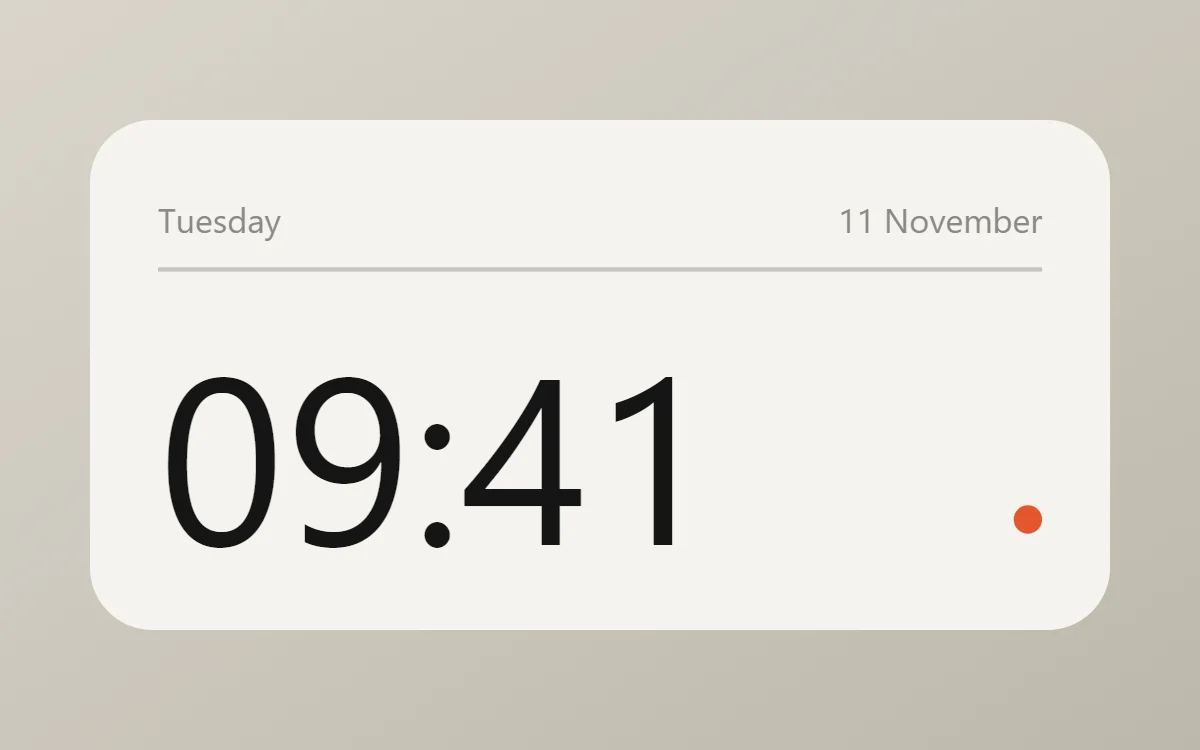
Digital clock, step by step
- Tap Create widget and set the canvas to 360 × 180.
- Tap Add and choose Clock.
- Choose a format. Hours and minutes is enough; the clock follows your phone's 12- or 24-hour setting unless you set one.
- Pick a font. Mono keeps digits the same width, so the clock does not shift as the time changes.
- Make the time large, then add a Date layer below it for the weekday and date.
- Tap Save, then Add to home screen.
Analog clock
Choose Analog instead of Clock. You can style the dial, the hour markers, the numerals and each hand separately, including the shape and length of the hour, minute and second hands. A 200 × 200 canvas suits a 2 × 2 space.
Format ideas
- 09:41 for a clean 24-hour look.
- 9:41 AM if you prefer 12-hour time.
- Hours and minutes on separate lines for a tall, bold widget.
- The time in one widget and the date in another, so each can be resized on its own.
A second time zone
Each clock layer can use its own time zone. Add two clocks to one widget, set the second to another city and label each one. This is how a world clock widget is built.
Things that do not work in widgets
Android refreshes home screen widgets about once a minute, so a ticking seconds display or a sweeping second hand is not possible. Design for hours and minutes.
Questions
Is a clock widget free?
Yes. Clock and date elements are free and work offline.
Why is my clock a minute behind?
Battery saving has paused the app. Set its battery use to unrestricted.
Can I change the font?
Yes. Use a built-in family or import a font file.