 WidgetCraftGet the app
Guide
How to make a true black home screen for OLED phones
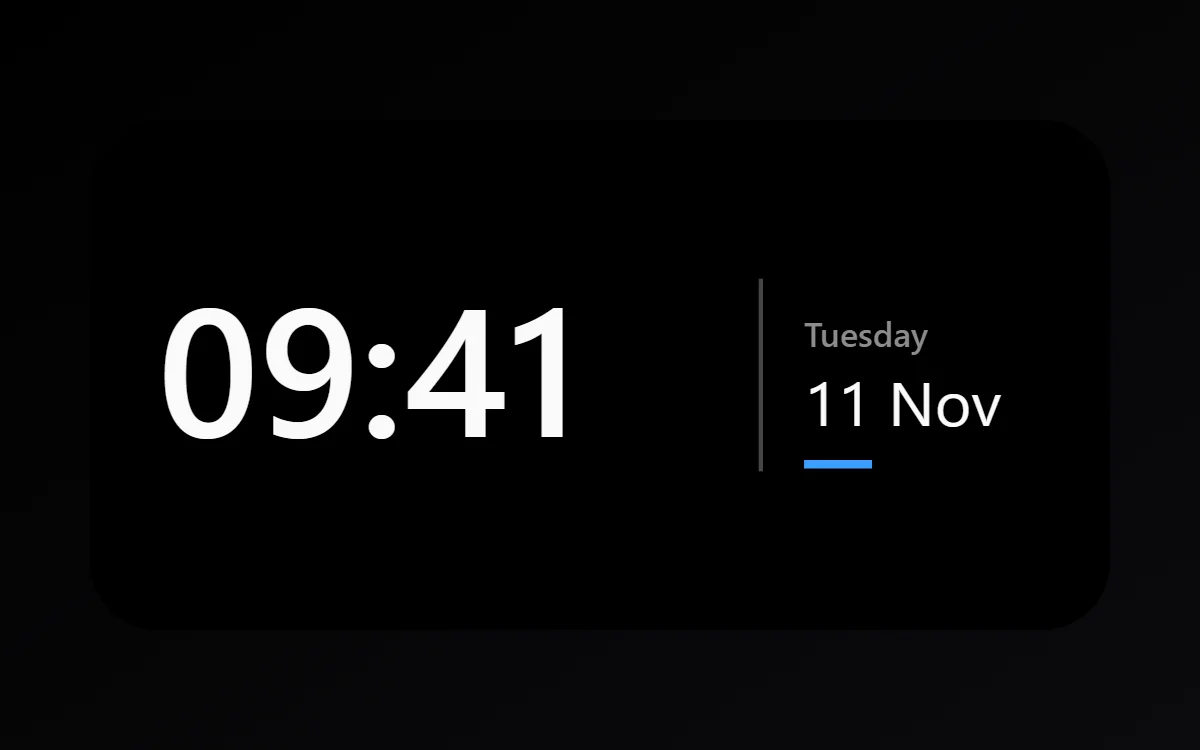
Use a pure black wallpaper, set widget backgrounds to #000000, keep text off-white and choose a single bright accent.
Why pure black
On an OLED or AMOLED screen each pixel makes its own light, and a black pixel is switched off. A truly black home screen looks deeper than dark grey, makes the edges of the display disappear and uses slightly less power.
Steps
- Set a plain black wallpaper. A solid #000000 image works best.
- Build your widgets with a #000000 background and no outline, so they merge with the wallpaper.
- Use off-white (#FAFAFA) for values and mid grey (#8C8C8C) for labels.
- Choose one accent color and use it for progress and highlights only.
- Switch to white glyph icons or themed icons.
Black or dark grey?
Dark grey is gentler on the eyes for long reading, which is why many apps use it. For a home screen you glance at, pure black is fine and looks cleaner. If you see smearing when scrolling, use a very dark grey such as #0A0A0A instead.
Avoiding the common problems
- Harsh contrast: avoid pure white text in large amounts; off-white is easier to read.
- Floating boxes: any border around a black widget on a black wallpaper breaks the effect.
- Too many colors: one accent looks intentional, three look random.
How much battery does it save?
A little. The saving depends on brightness and how much of the screen is black. It matters most at high brightness. It will not double your battery life, and it has no effect on LCD screens.
Questions
Does this work on LCD phones?
It looks dark, but LCD backlights stay on, so there is no power saving and blacks look grey.
Which accent color looks best on black?
Any saturated color. Blue, orange and green are the most readable.