 WidgetCraftGet the app
Guide
Themed icons on Android: how to match icons to your widgets
On Android 13 and later, open Wallpaper and style and turn on Themed icons. Supported app icons then take one color from your wallpaper.
Turn on themed icons
- Touch and hold the home screen and choose Wallpaper & style.
- Open the Home screen tab.
- Turn on Themed icons.
The wording differs by brand. On Samsung phones, look in Wallpaper and style → Color palette for the option to apply the palette to app icons.
Why some icons do not change
An app has to supply a special single-color version of its icon. Apps that have not added one keep their normal colors, which is why a themed screen often has a few stragglers. Newer Android versions can generate a themed version for those apps on some phones.
Alternatives
- Icon packs: install a pack and apply it in a launcher that supports them. This covers every app.
- Monochrome launcher options: some phones offer a built-in monochrome mode.
- Fewer icons: keep only themed apps on the home screen and leave the rest in the app drawer.
Matching widgets to themed icons
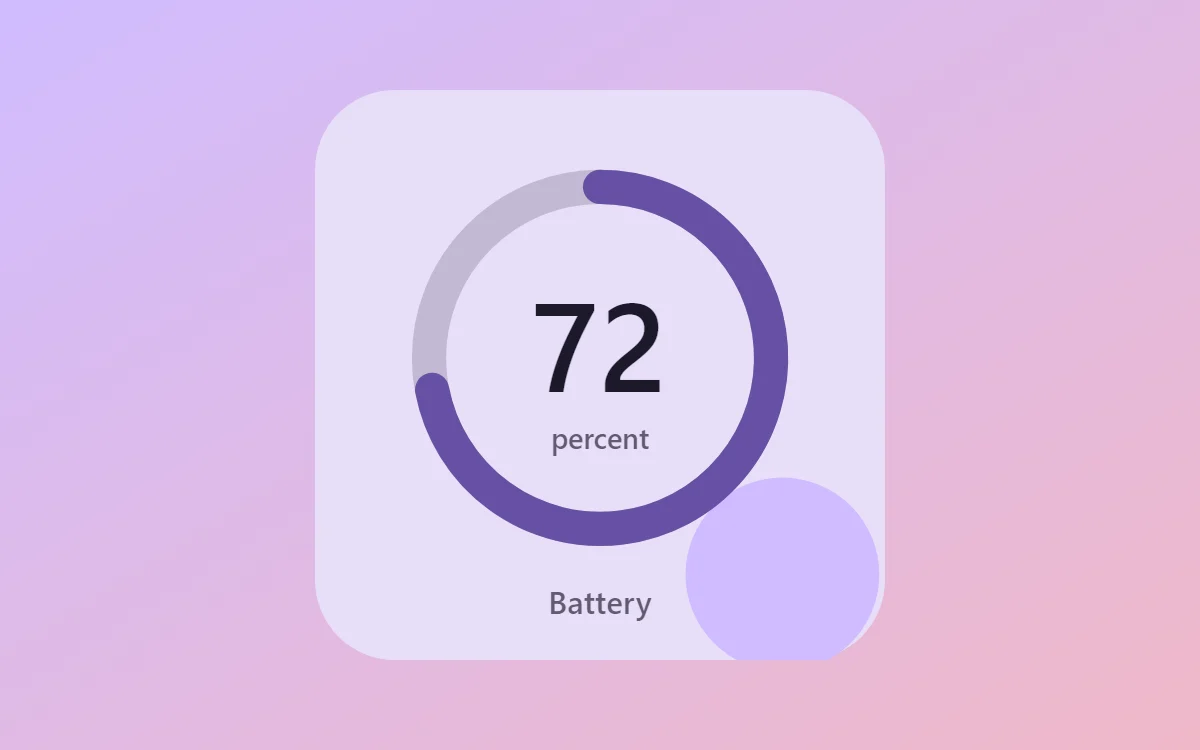
Themed icons use two tones from your wallpaper: a light background and a darker symbol. Give your widgets the same two tones and the same roundness, and the screen reads as one design. That is the basis of the Material You style.
Questions
Do themed icons work on Android 12?
On Pixel phones, a beta version appeared in Android 12 for Google apps. It became widely available in Android 13.
Do themed icons affect widgets?
No. Widgets keep the colors you gave them.