 WidgetCraftGet the app
Guide
How to change widget color on Android
Google's widgets take their colors from your wallpaper, so changing the wallpaper or the Wallpaper and style palette changes them. Other widgets offer a color option in their settings. For any color you like, design the widget yourself and set exact hex codes.
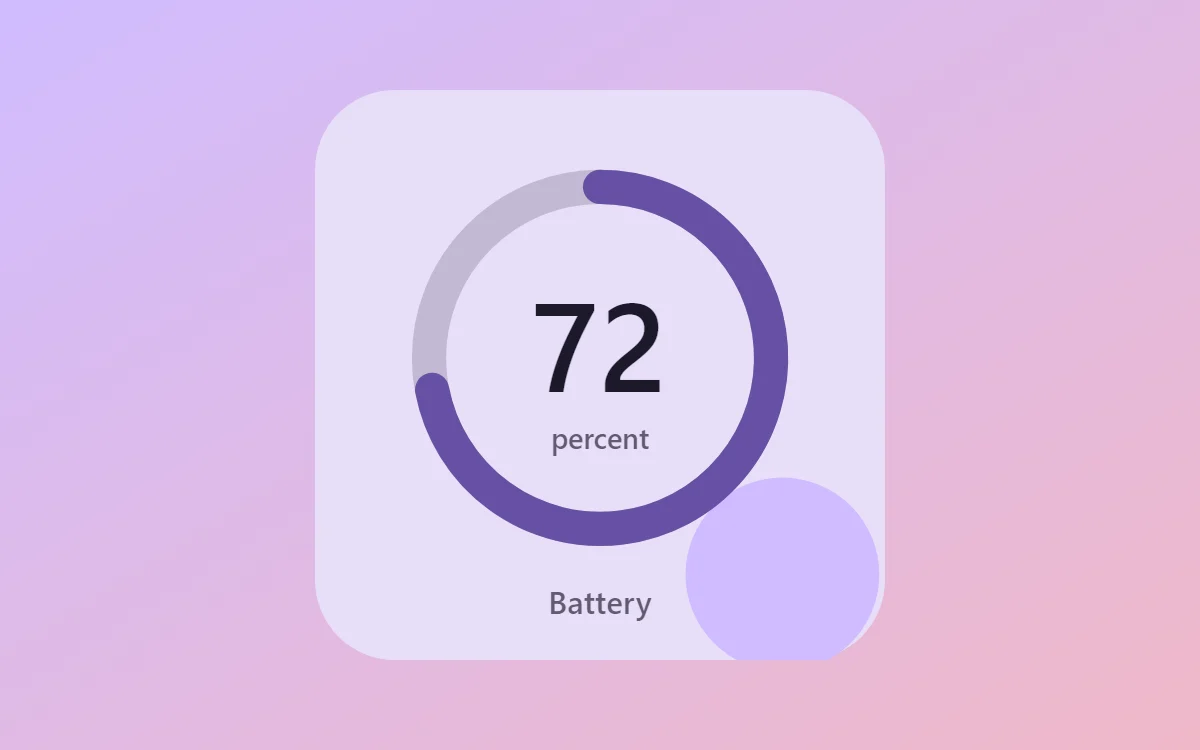
Widgets that follow your wallpaper
On Android 12 and later, Google's widgets and many others use dynamic color: they pick tones from your wallpaper. To change them, touch and hold the home screen, open Wallpaper & style and choose another color option, or set a new wallpaper. Every dynamic widget updates at once.
Widgets with their own color setting
Touch and hold the widget and look for Settings, a pencil or a palette icon. Clock, notes and calendar widgets often let you pick a theme, a background color or a transparency level. If no option appears, the app does not support it.
Any exact color with WidgetCraft
- Create a widget or import a template.
- Tap the background or a layer, open its color and type a hex code such as #E4572E, or pick from the palette.
- Set opacity separately if you want the background partly transparent.
- Save. The widget on your home screen changes to match.
Each style on this site lists five hex codes that work together; the color palettes page has them all in one place.
Choosing colors that work
- Pick the background from your wallpaper, then a text color with strong contrast.
- Use one accent color for the thing you want to notice, such as a progress bar.
- Test the widget on the real wallpaper in daylight before settling.
Questions
Why did my widgets change color by themselves?
You changed the wallpaper and dynamic color picked new tones. Choose a fixed color option in Wallpaper & style to keep them steady.
Can I make only one widget a different color?
Not with dynamic color, which applies to every supporting widget. A widget you design yourself keeps exactly the colors you set.
Is changing colors free in WidgetCraft?
Yes. Colors, fonts and opacity are all free.