 WidgetCraftGet the app
Guide
Samsung widgets: add, resize, stack and make them transparent
On a Galaxy phone, touch and hold an empty part of the home screen, tap Widgets, pick an app and drag the widget into place. Touch and hold a widget to resize it, stack it or open its settings.
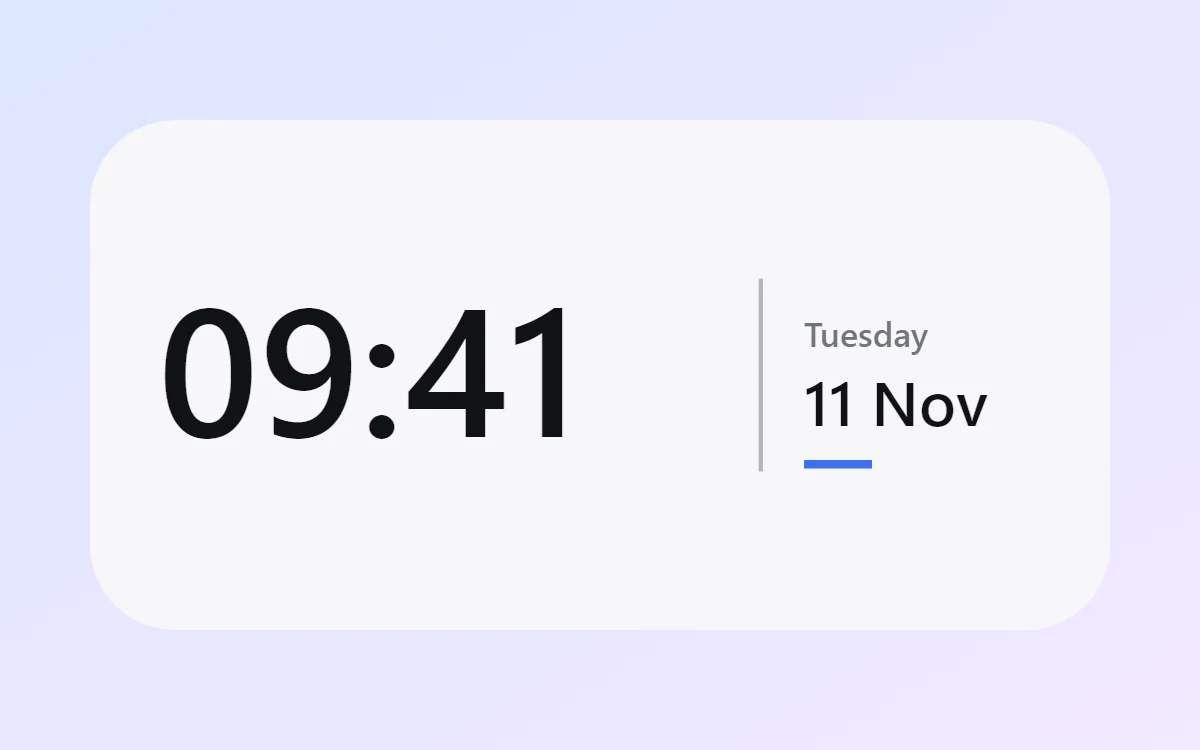
Add a widget on a Samsung phone
- Touch and hold an empty space on the home screen until the editing view appears.
- Tap Widgets.
- Find the app, or search for it at the top, and tap it to see its widget sizes.
- Touch and hold the size you want and drag it onto a home screen page, or tap Add.
Widgets from apps you installed, including WidgetCraft, appear in the same list.
Resize a widget
Touch and hold the widget and release. A frame with handles appears; drag the handles to change the number of cells. Some widgets have a minimum or fixed size, so the frame stops there. A widget designed in WidgetCraft scales with its frame.
Stack widgets
On recent One UI versions, touch and hold a widget and choose Create stack, then pick another widget of the same size. Swipe sideways on the stack to switch between them. Stacks are a tidy way to keep a calendar, a battery widget and a to-do list in one space.
Make widgets transparent
Many Samsung widgets, such as the clock, have a Settings option when you touch and hold them, with a background color and a transparency slider. Move it to full transparency for text that floats on the wallpaper. Widgets from other apps only offer this if the app includes it. In WidgetCraft, every widget has a background color and opacity you set exactly, from solid to fully transparent.
Match the One UI look
One UI widgets use rounded cards, a bold clock and soft colors. The One UI-style recipes give exact colors, corner radius and font settings for each widget type if you want your own widgets to sit naturally beside Samsung's.
Questions
Why can I not add widgets?
The home screen layout may be locked. Open Settings, then Home screen, and turn off Lock home screen layout.
Do my widgets work on the lock screen?
Recent One UI versions offer a small set of lock screen widgets chosen by Samsung; most home screen widgets, including WidgetCraft's, are for the home screen only.
Does a launcher change this?
Yes. If you use another launcher, follow its own steps.