 WidgetCraftGet the app
Guide
How to get iPhone-style widgets on Android
Design widgets with large rounded corners, a white or near-black card, a bold sans-serif font and one colored accent, and arrange them in a tidy grid.
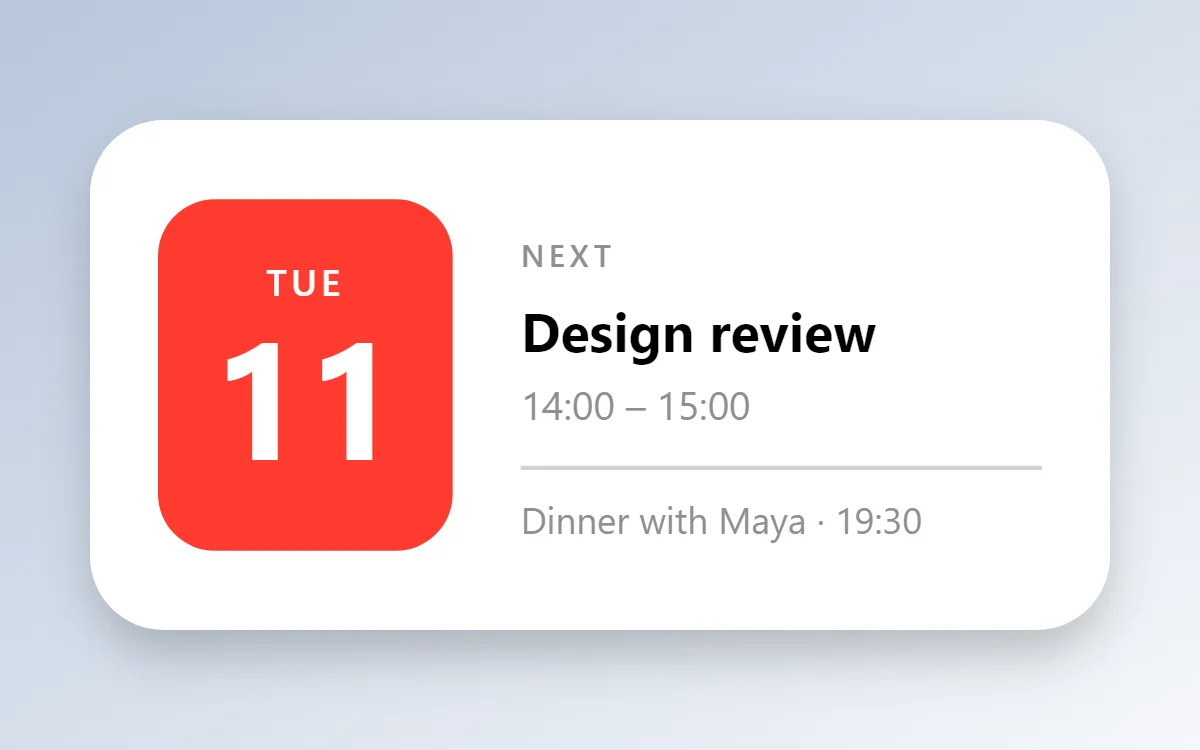
What makes a widget look like iOS
- Shape: a rounded square or rectangle with a large corner radius.
- Card: plain white in light mode, near-black in dark mode, no outline.
- Type: a bold, rounded sans-serif for values and a lighter weight for labels.
- Color: one accent per widget, often red for the calendar date or green for battery.
- Sizes: small (2 × 2), medium (4 × 2) and large (4 × 4), lined up in a grid.
Steps in WidgetCraft
- Tap Create widget and choose a square canvas for a small widget or a wide one for a medium widget.
- Set the background to white (#FFFFFF) or near-black (#1C1C1E) and the corner radius high, around 22.
- Add a Date layer for the weekday in the accent color and a large day number below it.
- Use the built-in sans-serif family at a heavy weight for numbers.
- Save, add it to the home screen, and repeat for a clock or battery widget with the same card settings.
Making the whole screen match
The iOS look comes as much from the grid as from the widgets. Keep icons the same size, hide labels if your launcher allows it, and use a soft blurred wallpaper. Put two small widgets side by side above a medium one.
A word on names
"iPhone-style" describes a look. Android cannot run iOS widgets, and WidgetCraft is not connected to Apple. You are building your own widget that borrows the visual language.
Questions
Can I make widgets that look exactly like iOS?
Close, but not pixel for pixel: Apple's system font is not licensed for Android, so use a similar sans-serif.
Do I need a launcher?
No, but a launcher that allows hiding icon labels gets you closer.
Is it free?
Yes. Date, clock, battery and photo widgets are free in WidgetCraft.